Cadence is a WooCommerce administration workspace. It gives store owners and teams one clean place to manage products, orders, customers and day-to-day operations — without living inside the WordPress admin.
These docs walk through installing Cadence, connecting it to your WooCommerce store, and using every part of the workspace. Steps are written for store owners, not developers — anywhere a technical detail matters, we call it out.
What you can do with Cadence
Manage your catalog
Products, variations, categories, inventory and coupons, with one-click product duplication.
Handle orders & customers
See live WooCommerce orders and customer history without switching tabs.
Run multiple stores
Switch between connected stores from one login, each kept fully separate.
Stay safe by default
Built-in backups, safe software updates and role-based admin access.
Cadence è uno spazio di lavoro per l'amministrazione di WooCommerce. Offre a proprietari di negozi e team un unico posto ordinato per gestire prodotti, ordini, clienti e le operazioni quotidiane, senza dover vivere dentro l'area amministrativa di WordPress.
Questa documentazione spiega come installare Cadence, collegarlo al tuo negozio WooCommerce e usare ogni parte dello spazio di lavoro. I passaggi sono scritti per i proprietari dei negozi, non per sviluppatori: dove un dettaglio tecnico è importante, lo segnaliamo chiaramente.
Cosa puoi fare con Cadence
Gestisci il tuo catalogo
Prodotti, varianti, categorie, magazzino e coupon, con duplicazione dei prodotti in un clic.
Gestisci ordini e clienti
Vedi gli ordini WooCommerce in tempo reale e lo storico clienti senza cambiare scheda.
Gestisci più negozi
Passa da un negozio collegato all'altro con un solo accesso, ognuno tenuto completamente separato.
Sicurezza di base
Backup integrati, aggiornamenti software sicuri e accesso amministrativo basato su ruoli.
Cadence ist ein Verwaltungs-Arbeitsbereich für WooCommerce. Shop-Betreiber und Teams erhalten einen übersichtlichen Ort, um Produkte, Bestellungen, Kunden und das Tagesgeschäft zu verwalten — ohne dauerhaft im WordPress-Admin zu arbeiten.
Diese Dokumentation führt durch die Installation von Cadence, die Verbindung mit Ihrem WooCommerce-Shop und die Nutzung aller Bereiche. Die Schritte richten sich an Shop-Betreiber, nicht an Entwickler — wichtige technische Details werden ausdrücklich hervorgehoben.
Was Sie mit Cadence tun können
Katalog verwalten
Produkte, Varianten, Kategorien, Lagerbestand und Gutscheine — mit Produktduplizierung per Klick.
Bestellungen & Kunden
Live-WooCommerce-Bestellungen und Kundenhistorie, ohne den Tab zu wechseln.
Mehrere Shops führen
Zwischen verbundenen Shops mit einem Login wechseln — jeder bleibt vollständig getrennt.
Standardmäßig sicher
Integrierte Backups, sichere Software-Updates und rollenbasierter Admin-Zugriff.
Cadence installs like any standard PHP application on shared hosting. The guided installer handles your database and creates your admin account — you don't need to touch a terminal.
Requirements
Requirement
Minimum
PHP
8.3 or newer
Database
MySQL / MariaDB, PostgreSQL, or SQLite
Web server
Apache with mod_rewrite, or Nginx
HTTPS
Recommended for every installation
Shared hosting & Hostinger
Upload the contents of the Cadence package to your hosting account.
Point your domain at the public/ folder if your host allows it. If it only lets you point at the project root, Cadence's built-in .htaccess automatically and safely routes traffic to public/ for you — no manual configuration needed.
Create a MySQL database and a database user from your host's control panel (in Hostinger's hPanel: Databases → MySQL Databases).
Visit your domain in a browser. Cadence detects it isn't installed yet and opens the installer automatically.
cPanel works the same way
Create the database under MySQL Databases, upload the files via File Manager or FTP, then open your domain.
The guided setup
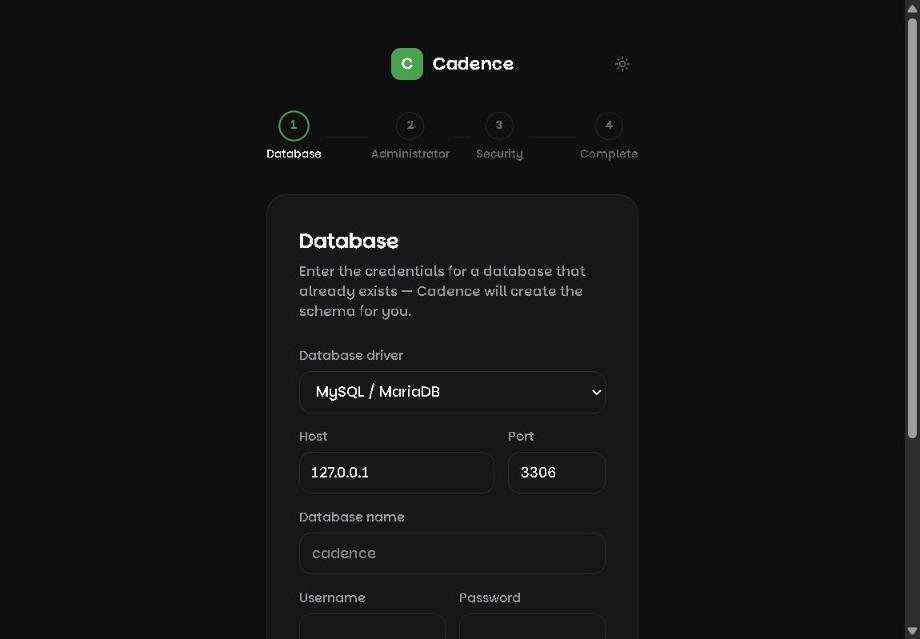
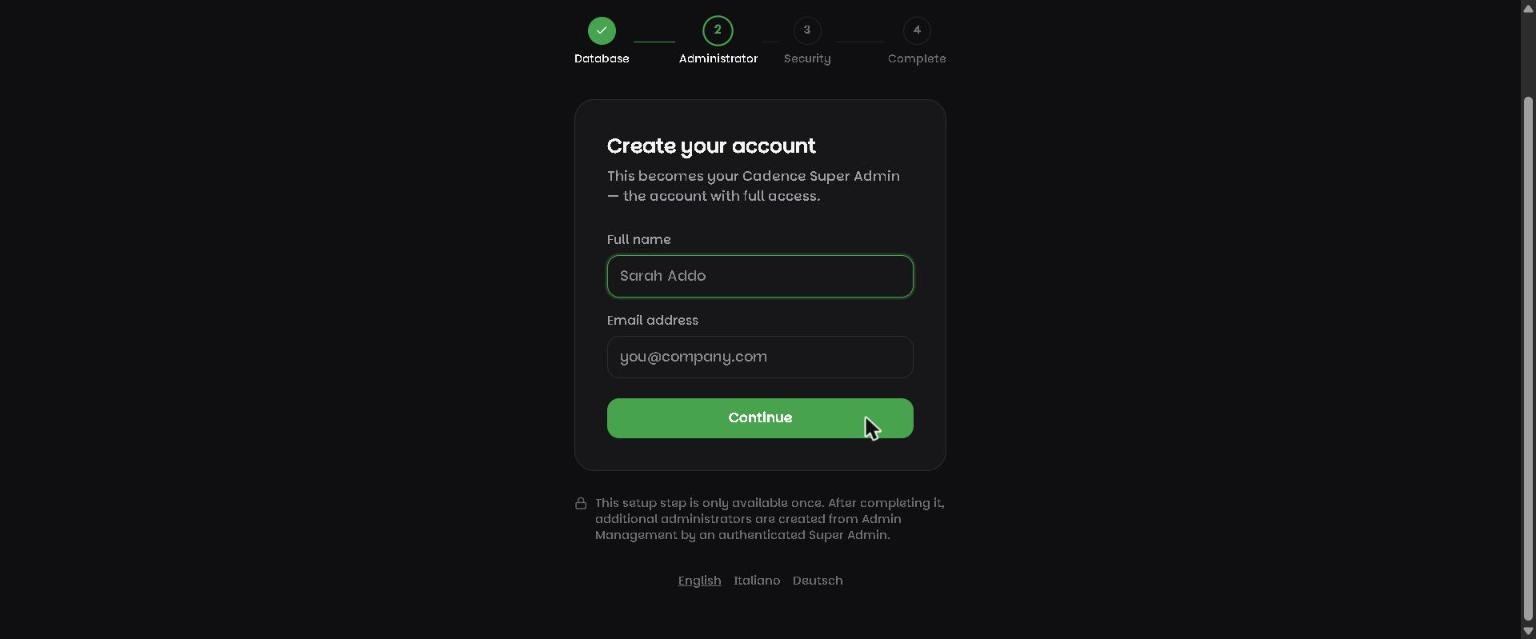
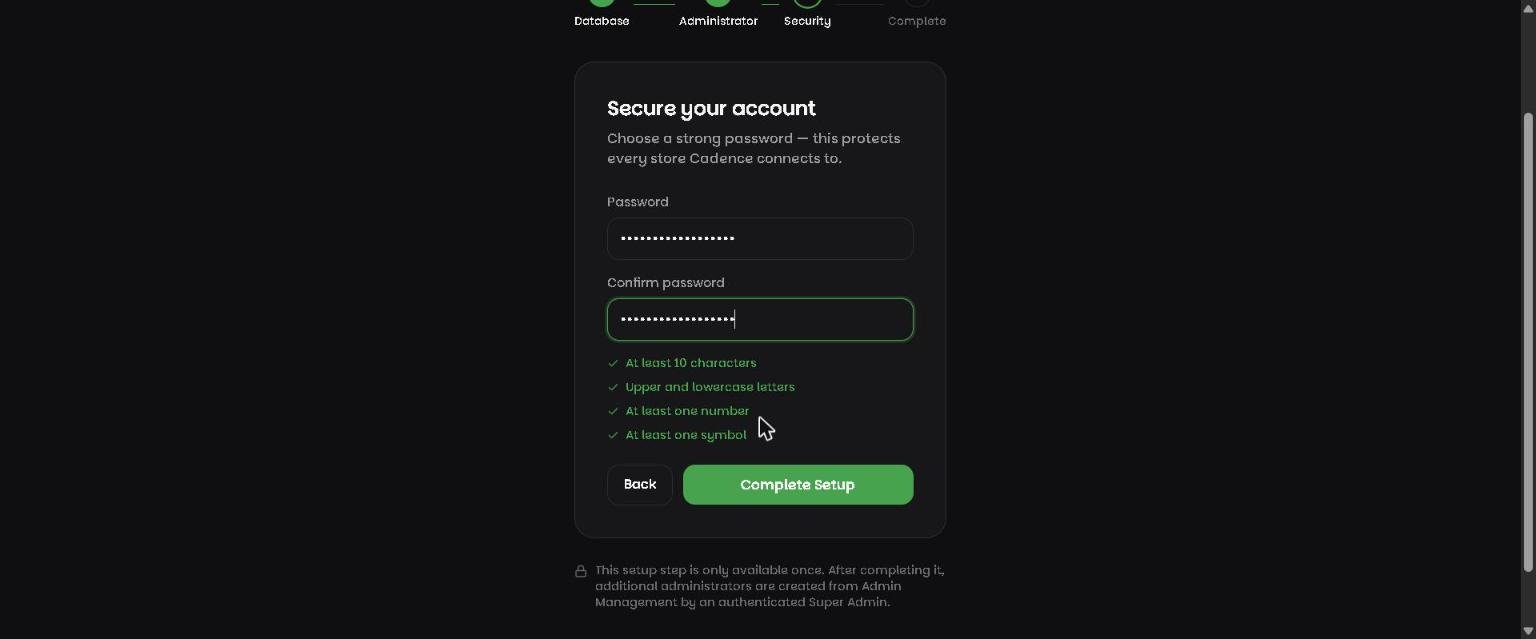
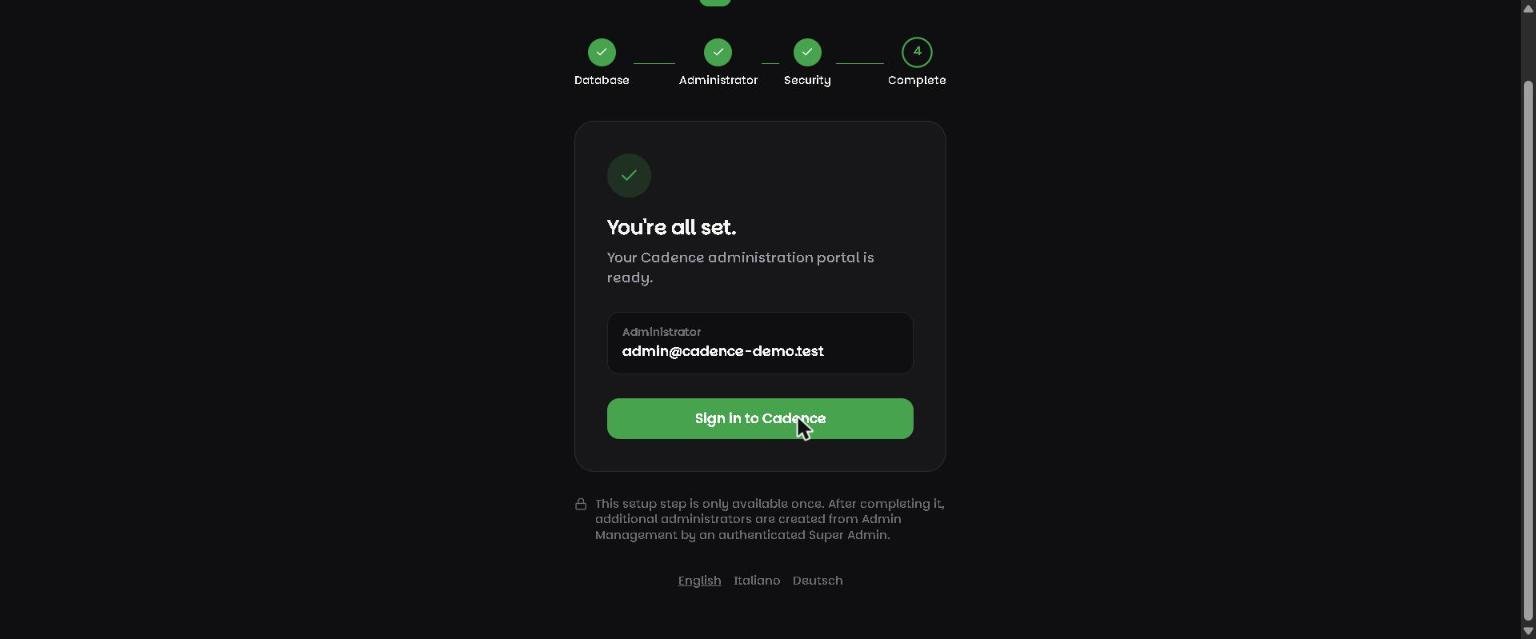
The installer has four short steps:
Step 1 — enter the database credentials you created with your host. Cadence creates all the required tables for you.Step 2 — this becomes your Super Admin account, the account with full access to everything in Cadence.Step 3 — choose a password. The checklist confirms it meets every requirement before you continue.Step 4 — installation is complete and your administration portal is ready.
The installer only runs once
Once setup finishes, the installer locks itself and no development or placeholder accounts are left behind — the account you created is the only way in.
Signing in
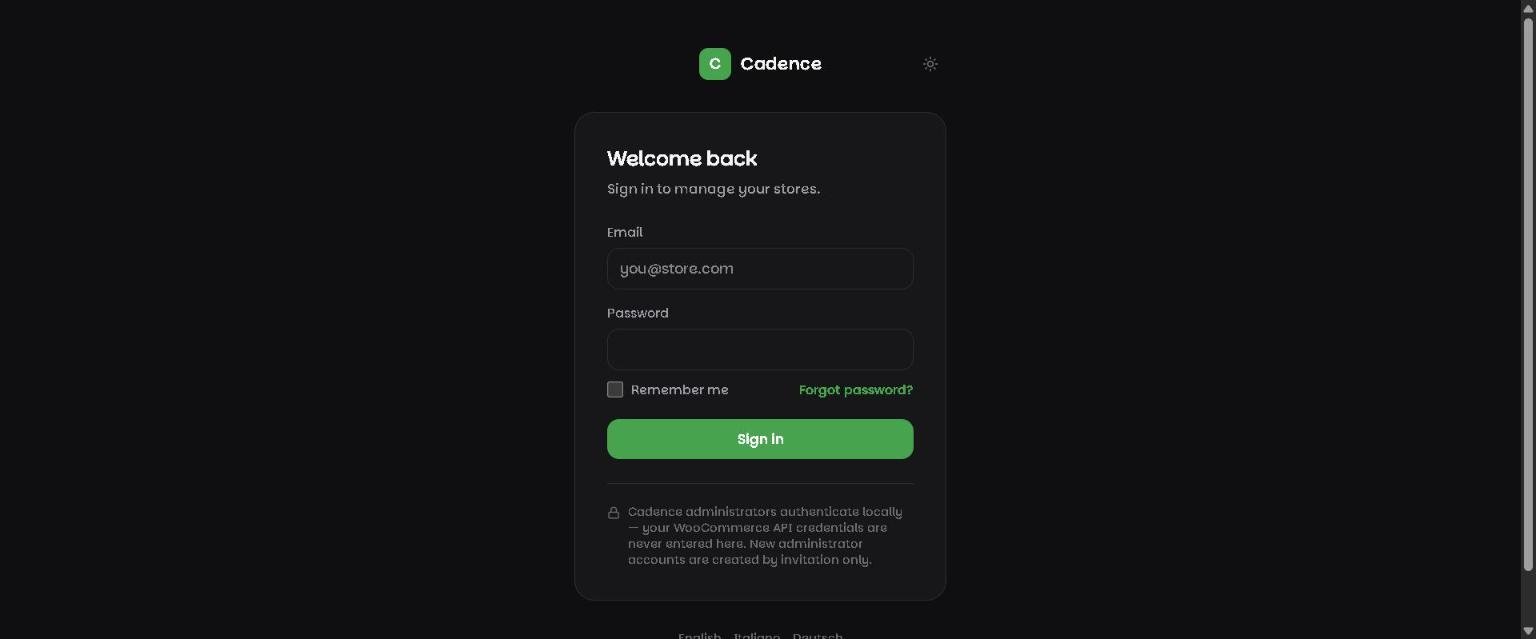
Sign in with the email and password you created during setup.
Per iniziare
Installazione
Cadence si installa come una normale applicazione PHP su hosting condiviso. L'installazione guidata configura il database e crea il tuo account amministratore: non serve usare il terminale.
Requisiti
Requisito
Minimo
PHP
8.3 o superiore
Database
MySQL / MariaDB, PostgreSQL o SQLite
Server web
Apache con mod_rewrite, oppure Nginx
HTTPS
Consigliato per ogni installazione
Hosting condiviso e Hostinger
Carica il contenuto del pacchetto Cadence nel tuo spazio di hosting.
Punta il dominio alla cartella public/ se il tuo host lo consente. Se puoi puntare solo alla radice del progetto, il file .htaccess incluso in Cadence reindirizza automaticamente e in sicurezza il traffico a public/, senza configurazioni manuali.
Crea un database MySQL e un utente database dal pannello del tuo host (in hPanel di Hostinger: Database → Database MySQL).
Visita il tuo dominio nel browser. Cadence rileva che non è ancora installato e apre automaticamente l'installazione guidata.
cPanel funziona allo stesso modo
Crea il database in MySQL Databases, carica i file tramite File Manager o FTP, poi apri il tuo dominio.
L'installazione guidata
L'installazione guidata ha quattro brevi passaggi:
Passaggio 1 — inserisci le credenziali del database create presso il tuo host. Cadence crea tutte le tabelle necessarie automaticamente.Passaggio 2 — diventerà il tuo account Super Admin, con accesso completo a tutto Cadence.Passaggio 3 — scegli una password. L'elenco conferma che soddisfa ogni requisito prima di continuare.Passaggio 4 — l'installazione è completa e il tuo portale di amministrazione è pronto.
L'installazione parte una sola volta
Al termine, l'installazione si blocca automaticamente e non rimangono account di sviluppo o segnaposto: l'account creato è l'unico modo per accedere.
Accesso
Accedi con l'email e la password create durante l'installazione.
Erste Schritte
Installation
Cadence wird wie jede gewöhnliche PHP-Anwendung auf Shared Hosting installiert. Der geführte Installer richtet Ihre Datenbank ein und erstellt Ihr Admin-Konto — ein Terminal brauchen Sie nicht.
Voraussetzungen
Anforderung
Minimum
PHP
8.3 oder neuer
Datenbank
MySQL/MariaDB, PostgreSQL oder SQLite
Webserver
Apache mit mod_rewrite, oder Nginx
HTTPS
Für jede Installation empfohlen
Shared Hosting & Hostinger
Laden Sie den Inhalt des Cadence-Pakets in Ihr Hosting-Konto hoch.
Richten Sie Ihre Domain auf den Ordner public/, falls Ihr Hoster das zulässt. Ist nur das Projektstammverzeichnis möglich, leitet die mitgelieferte .htaccess-Datei den Traffic automatisch und sicher an public/ weiter — keine manuelle Konfiguration nötig.
Erstellen Sie eine MySQL-Datenbank und einen Datenbankbenutzer im Kontrollpanel Ihres Hosters (im hPanel von Hostinger: Datenbanken → MySQL-Datenbanken).
Rufen Sie Ihre Domain im Browser auf. Cadence erkennt, dass es noch nicht installiert ist, und öffnet automatisch den Installer.
cPanel funktioniert genauso
Erstellen Sie die Datenbank unter MySQL Databases, laden Sie die Dateien über den Dateimanager oder FTP hoch und öffnen Sie dann Ihre Domain.
Die geführte Einrichtung
Der Installer besteht aus vier kurzen Schritten:
Schritt 1 — geben Sie die bei Ihrem Hoster erstellten Datenbank-Zugangsdaten ein. Cadence legt alle nötigen Tabellen für Sie an.Schritt 2 — dies wird Ihr Super-Admin-Konto mit vollem Zugriff auf Cadence.Schritt 3 — wählen Sie ein Passwort. Die Checkliste bestätigt, dass alle Anforderungen erfüllt sind.Schritt 4 — die Installation ist abgeschlossen und Ihr Admin-Portal ist einsatzbereit.
Der Installer läuft nur einmal
Nach Abschluss der Einrichtung sperrt sich der Installer selbst — es bleiben keine Entwickler- oder Platzhalterkonten zurück. Das erstellte Konto ist der einzige Zugang.
Anmelden
Melden Sie sich mit der E-Mail-Adresse und dem Passwort aus der Einrichtung an.
Cadence never asks for your WordPress password. It connects to WooCommerce using an API key pair, and to WordPress (for the media library) using an Application Password — both created from inside WordPress, both revocable at any time.
Generate WooCommerce API keys
In WordPress, go to WooCommerce → Settings → Advanced → REST API.
Click Add key, give it a description like "Cadence", and set permissions to Read/Write.
Copy the Consumer key and Consumer secret shown — WordPress only displays the secret once.
Add the store in Cadence
Go to Settings → Stores → Add Store.
Enter your store's URL and paste in the consumer key and secret.
Save. Cadence tests the connection immediately and shows the result.
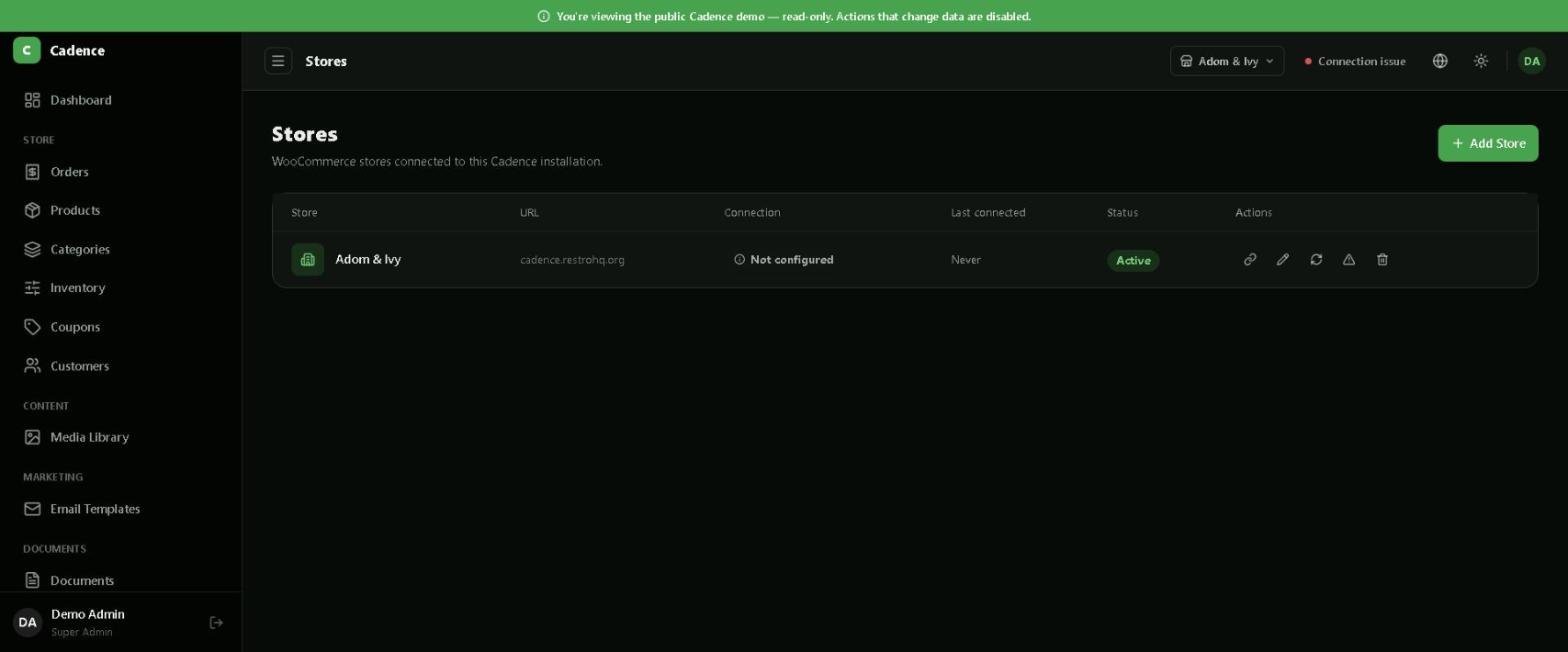
Every store you connect appears here, with its live connection status.
Connecting the media library (optional)
To manage images through Cadence's Media Library, add a WordPress Application Password too: in WordPress, go to Users → Profile → Application Passwords, create one named "Cadence", and paste it into the same store's settings.
If the connection fails
Double-check the store URL has no typos (a common cause is a missing or extra letter in the domain), confirm the API key still has Read/Write permission, and make sure the store is reachable over HTTPS.
Per iniziare
Collegare il tuo negozio WooCommerce
Cadence non chiede mai la password di WordPress. Si collega a WooCommerce tramite una coppia di chiavi API e a WordPress (per la libreria media) tramite una Application Password: entrambe create da dentro WordPress ed entrambe revocabili in qualsiasi momento.
Genera le chiavi API di WooCommerce
In WordPress vai su WooCommerce → Impostazioni → Avanzate → API REST.
Clicca su Aggiungi chiave, inserisci una descrizione come "Cadence" e imposta i permessi su Lettura/Scrittura.
Copia la Consumer key e il Consumer secret mostrati: WordPress mostra il secret una sola volta.
Aggiungi il negozio in Cadence
Vai su Impostazioni → Negozi → Aggiungi negozio.
Inserisci l'URL del tuo negozio e incolla consumer key e secret.
Salva. Cadence testa subito la connessione e mostra il risultato.
Ogni negozio collegato appare qui, con lo stato della connessione in tempo reale.
Collegare la libreria media (opzionale)
Per gestire le immagini tramite la Libreria Media di Cadence, aggiungi anche una Application Password di WordPress: in WordPress vai su Utenti → Profilo → Application Passwords, creane una chiamata "Cadence" e incollala nelle impostazioni dello stesso negozio.
Se la connessione fallisce
Controlla che l'URL del negozio non contenga errori di battitura (una causa comune è una lettera mancante o in più nel dominio), verifica che la chiave API abbia ancora i permessi di Lettura/Scrittura e assicurati che il negozio sia raggiungibile via HTTPS.
Erste Schritte
Ihren WooCommerce-Shop verbinden
Cadence fragt niemals nach Ihrem WordPress-Passwort. Es verbindet sich mit WooCommerce über ein API-Schlüsselpaar und mit WordPress (für die Medienbibliothek) über ein Anwendungspasswort — beide werden in WordPress erstellt und können jederzeit widerrufen werden.
WooCommerce-API-Schlüssel erzeugen
Gehen Sie in WordPress zu WooCommerce → Einstellungen → Erweitert → REST-API.
Klicken Sie auf Schlüssel hinzufügen, vergeben Sie eine Beschreibung wie „Cadence" und setzen Sie die Berechtigung auf Lesen/Schreiben.
Kopieren Sie den angezeigten Consumer Key und das Consumer Secret — WordPress zeigt das Secret nur einmal an.
Shop in Cadence hinzufügen
Gehen Sie zu Einstellungen → Shops → Shop hinzufügen.
Geben Sie die URL Ihres Shops ein und fügen Sie Consumer Key und Secret ein.
Speichern. Cadence testet die Verbindung sofort und zeigt das Ergebnis an.
Jeder verbundene Shop erscheint hier mit seinem aktuellen Verbindungsstatus.
Medienbibliothek verbinden (optional)
Um Bilder über die Medienbibliothek von Cadence zu verwalten, fügen Sie zusätzlich ein WordPress-Anwendungspasswort hinzu: Gehen Sie in WordPress zu Benutzer → Profil → Anwendungspasswörter, erstellen Sie eines mit dem Namen „Cadence" und fügen Sie es in dieselben Shop-Einstellungen ein.
Wenn die Verbindung fehlschlägt
Prüfen Sie die Shop-URL auf Tippfehler (häufig fehlt oder überzählt ein Buchstabe in der Domain), stellen Sie sicher, dass der API-Schlüssel weiterhin Lese-/Schreibrechte hat, und dass der Shop über HTTPS erreichbar ist.
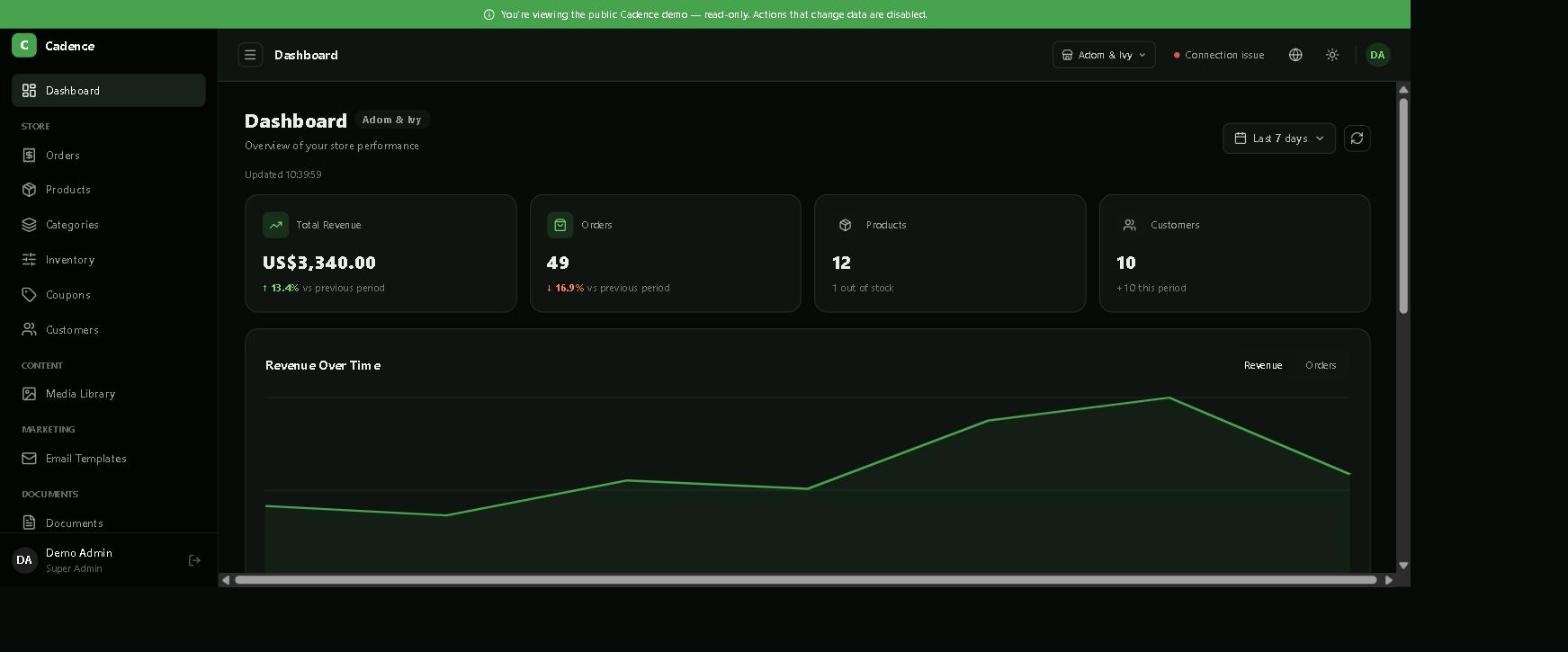
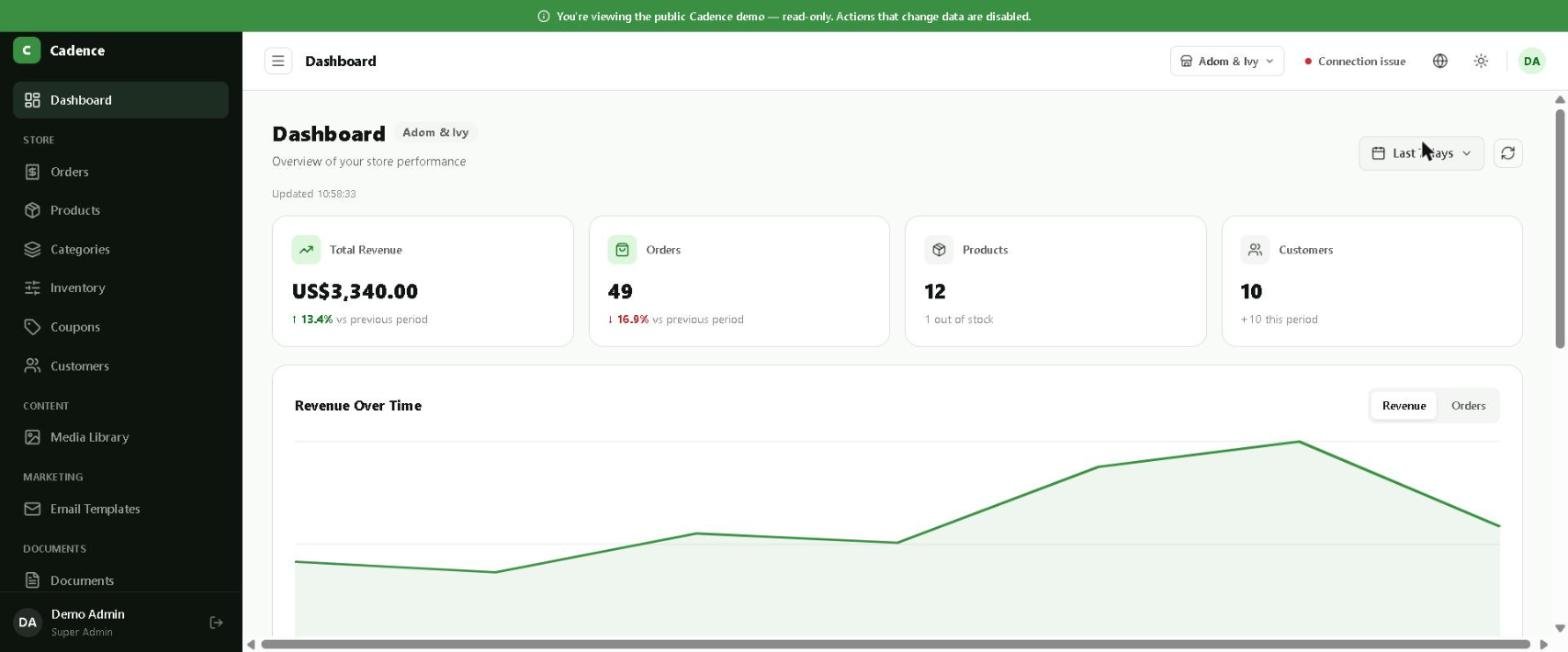
The Dashboard is the first thing you see after signing in — a live snapshot of revenue, orders, products and customers for whichever store you have selected.
Revenue, orders, products, customers — four headline numbers compared against the previous period.
Revenue over time — a chart you can switch between revenue and order count.
Date range — change the reporting window from the top-right control.
Store switcher — if you manage more than one store, switch stores from the top bar; the whole dashboard updates instantly.
Dashboard shown in dark mode.The same dashboard in light mode — switch anytime from the sun/moon icon in the top bar.
Usare Cadence
Dashboard
La Dashboard è la prima cosa che vedi dopo l'accesso: una fotografia in tempo reale di fatturato, ordini, prodotti e clienti per il negozio selezionato.
Fatturato, ordini, prodotti, clienti — quattro numeri principali confrontati con il periodo precedente.
Fatturato nel tempo — un grafico che puoi alternare tra fatturato e numero di ordini.
Intervallo di date — cambia il periodo di riferimento dal controllo in alto a destra.
Selettore negozio — se gestisci più negozi, puoi cambiarli dalla barra superiore; l'intera dashboard si aggiorna all'istante.
Dashboard mostrata in modalità scura.La stessa dashboard in modalità chiara — cambia in qualsiasi momento dall'icona sole/luna nella barra superiore.
Cadence verwenden
Dashboard
Das Dashboard sehen Sie direkt nach der Anmeldung — eine Live-Übersicht über Umsatz, Bestellungen, Produkte und Kunden für den ausgewählten Shop.
Umsatz, Bestellungen, Produkte, Kunden — vier Kennzahlen im Vergleich zum Vorzeitraum.
Umsatzverlauf — ein Diagramm, das zwischen Umsatz und Bestellanzahl umschaltbar ist.
Zeitraum — den Berichtszeitraum oben rechts ändern.
Shop-Wechsel — bei mehreren Shops in der oberen Leiste wechseln; das gesamte Dashboard aktualisiert sich sofort.
Dashboard im Dunkelmodus.Dasselbe Dashboard im Hellmodus — jederzeit über das Sonne/Mond-Symbol in der oberen Leiste umschaltbar.
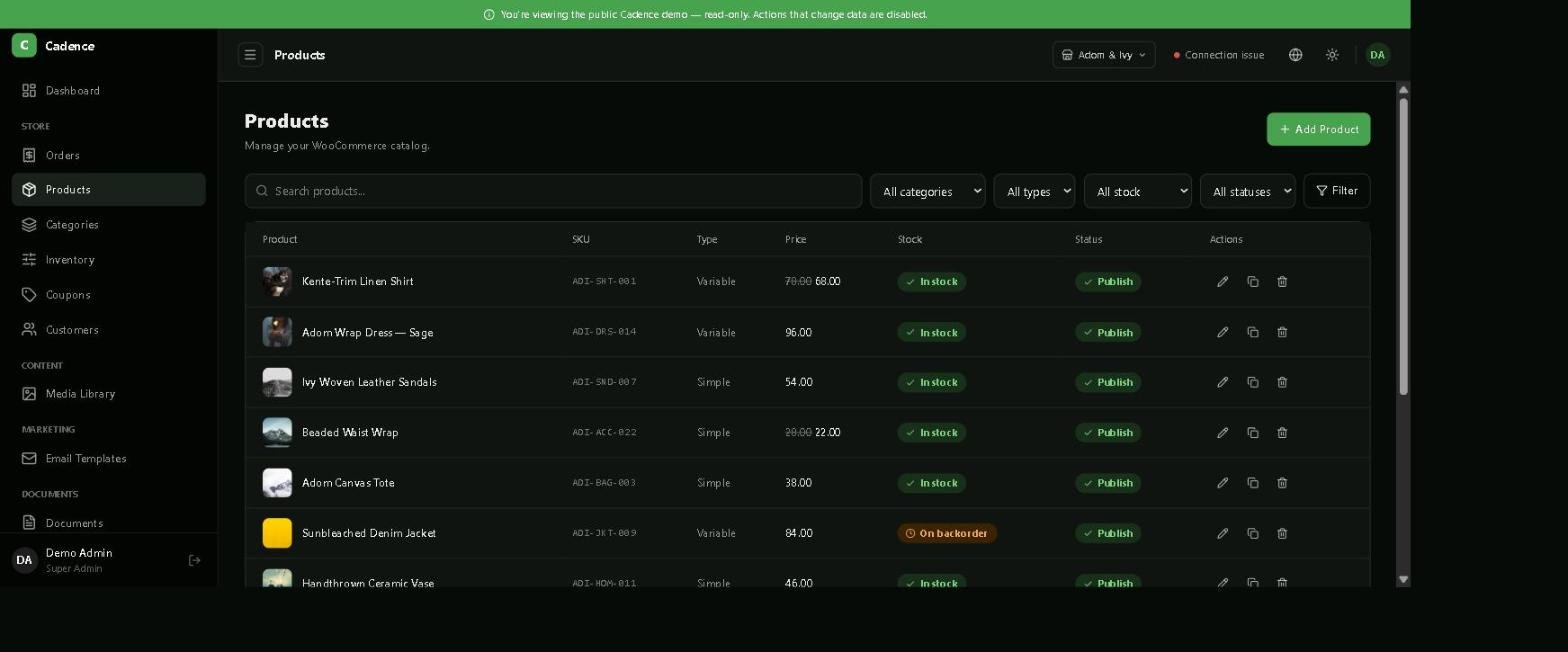
Manage your full WooCommerce catalog from Cadence: simple and variable products, pricing, stock, images, categories and attributes.
Your catalog, with stock and status visible at a glance.
Duplicating a product
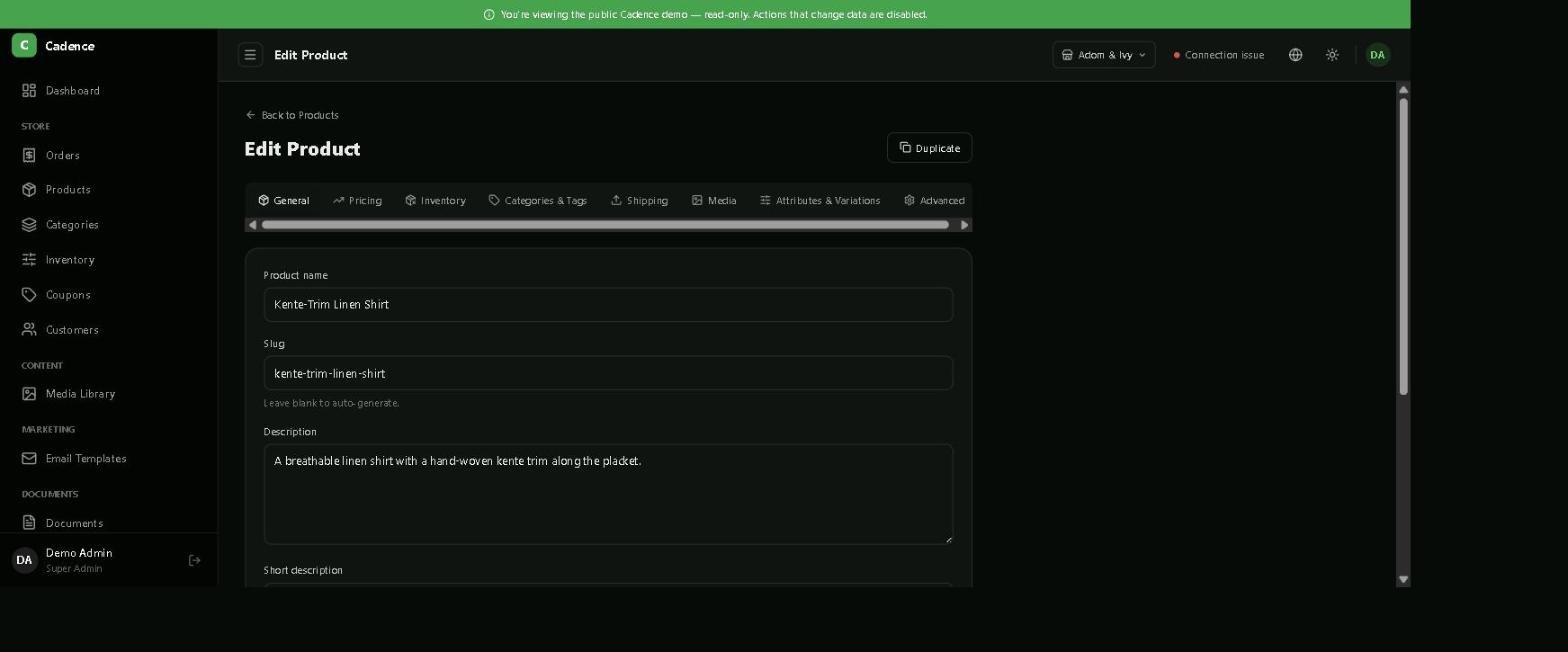
Click Duplicate on any product to create a brand-new copy — a real, independent WooCommerce product with its own ID. The original is never changed.
The copy is named "Copy of [Original Product]" and opens straight in the editor so you can adjust it before saving.
Categories, tags, attributes, images, descriptions, pricing and shipping settings all carry over.
For variable products, every variation is duplicated too, each with its own new variation — never sharing an ID with the original.
SKUs are handled automatically so duplicating never creates a conflict with the original product's SKU.
The Duplicate button lives at the top of every product's editor.
Good for
Launching seasonal variants of an existing product, quickly building a similar item without re-entering every field, or creating a template product to duplicate repeatedly.
Usare Cadence
Prodotti e duplicazione
Gestisci l'intero catalogo WooCommerce da Cadence: prodotti semplici e variabili, prezzi, magazzino, immagini, categorie e attributi.
Il tuo catalogo, con magazzino e stato visibili a colpo d'occhio.
Duplicare un prodotto
Clicca su Duplica su qualsiasi prodotto per creare una copia completamente nuova: un vero prodotto WooCommerce indipendente, con un proprio ID. L'originale non viene mai modificato.
La copia si chiama "Copy of [Prodotto originale]" e si apre subito nell'editor, così puoi modificarla prima di salvare.
Categorie, tag, attributi, immagini, descrizioni, prezzi e impostazioni di spedizione vengono tutti riportati.
Per i prodotti variabili, anche ogni variante viene duplicata, ciascuna con un nuovo ID: nessuna variante condivide l'ID con l'originale.
Gli SKU vengono gestiti automaticamente, quindi la duplicazione non crea mai conflitti con lo SKU del prodotto originale.
Il pulsante Duplica si trova in alto nell'editor di ogni prodotto.
Utile per
Lanciare varianti stagionali di un prodotto esistente, creare rapidamente un articolo simile senza reinserire ogni campo, oppure creare un prodotto modello da duplicare più volte.
Cadence verwenden
Produkte & Duplizieren
Verwalten Sie Ihren gesamten WooCommerce-Katalog über Cadence: einfache und variable Produkte, Preise, Lagerbestand, Bilder, Kategorien und Attribute.
Ihr Katalog, mit Lagerbestand und Status auf einen Blick.
Ein Produkt duplizieren
Klicken Sie bei jedem Produkt auf Duplizieren, um eine brandneue Kopie zu erstellen — ein echtes, unabhängiges WooCommerce-Produkt mit eigener ID. Das Original wird nie verändert.
Die Kopie heißt „Copy of [Originalprodukt]" und öffnet sich direkt im Editor, damit Sie sie vor dem Speichern anpassen können.
Kategorien, Tags, Attribute, Bilder, Beschreibungen, Preise und Versandeinstellungen werden vollständig übernommen.
Bei variablen Produkten wird auch jede Variation dupliziert — jede mit einer neuen eigenen ID, nie mit der ID des Originals.
SKUs werden automatisch behandelt, sodass Duplizieren nie zu einem Konflikt mit dem SKU des Originalprodukts führt.
Die Schaltfläche Duplizieren befindet sich oben in jedem Produkteditor.
Gut geeignet für
Saisonale Varianten eines bestehenden Produkts, schnelles Erstellen eines ähnlichen Artikels ohne jedes Feld neu einzugeben, oder ein Vorlagenprodukt, das Sie wiederholt duplizieren.
Three focused tools for keeping a catalog organized and moving.
Categories
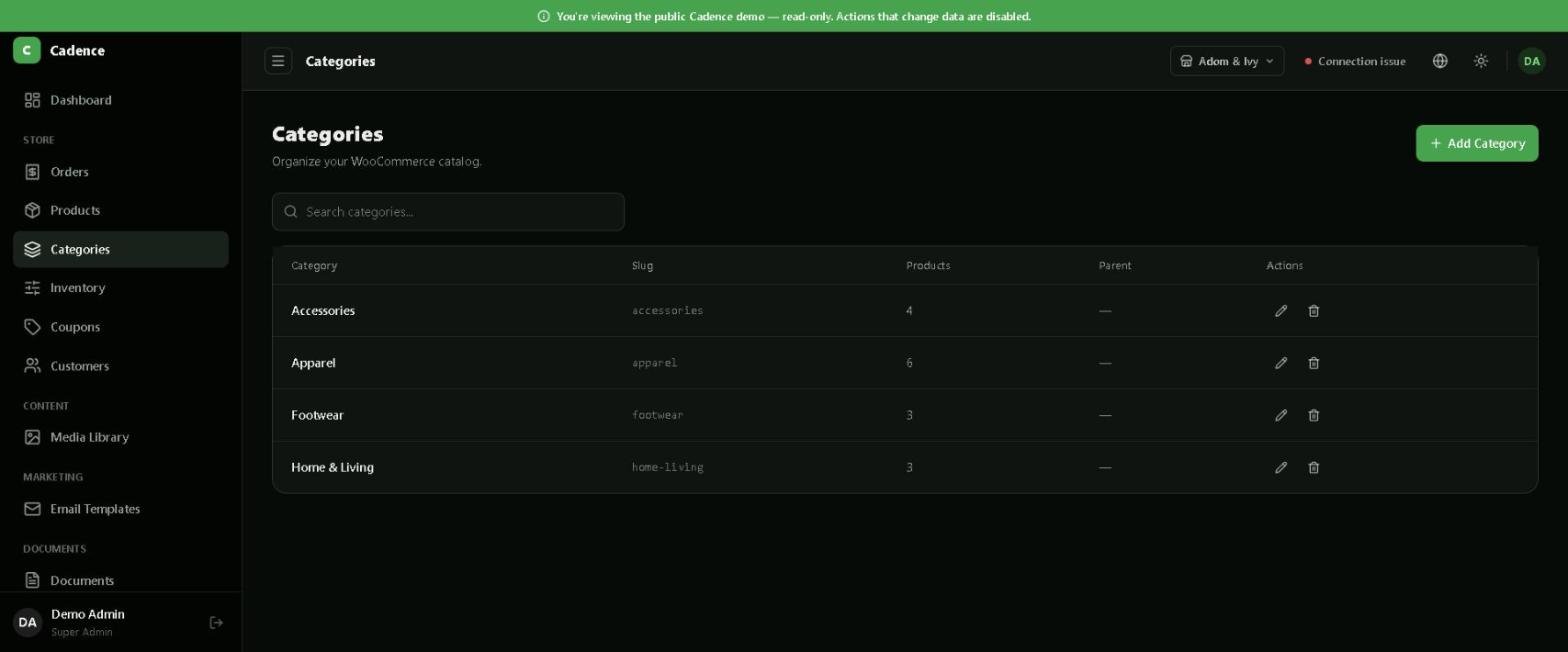
Create and organize categories from Categories in the sidebar. Each shows how many products use it, so you can spot empty or overloaded categories at a glance.
Categories with live product counts.
Inventory
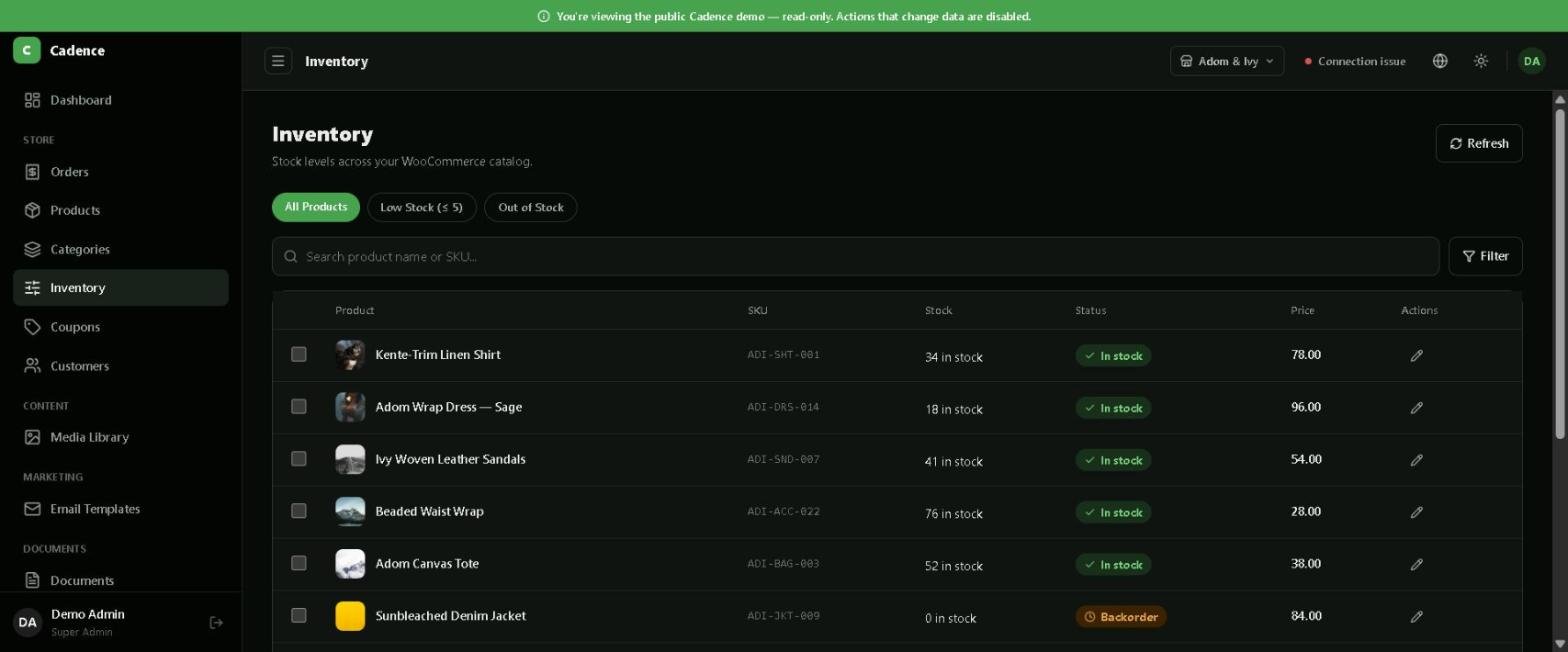
The Inventory view shows stock levels across your whole catalog in one table, with quick filters for Low Stock and Out of Stock — useful for a fast weekly stock check without opening every product.
Filter by All Products, Low Stock or Out of Stock.
Coupons
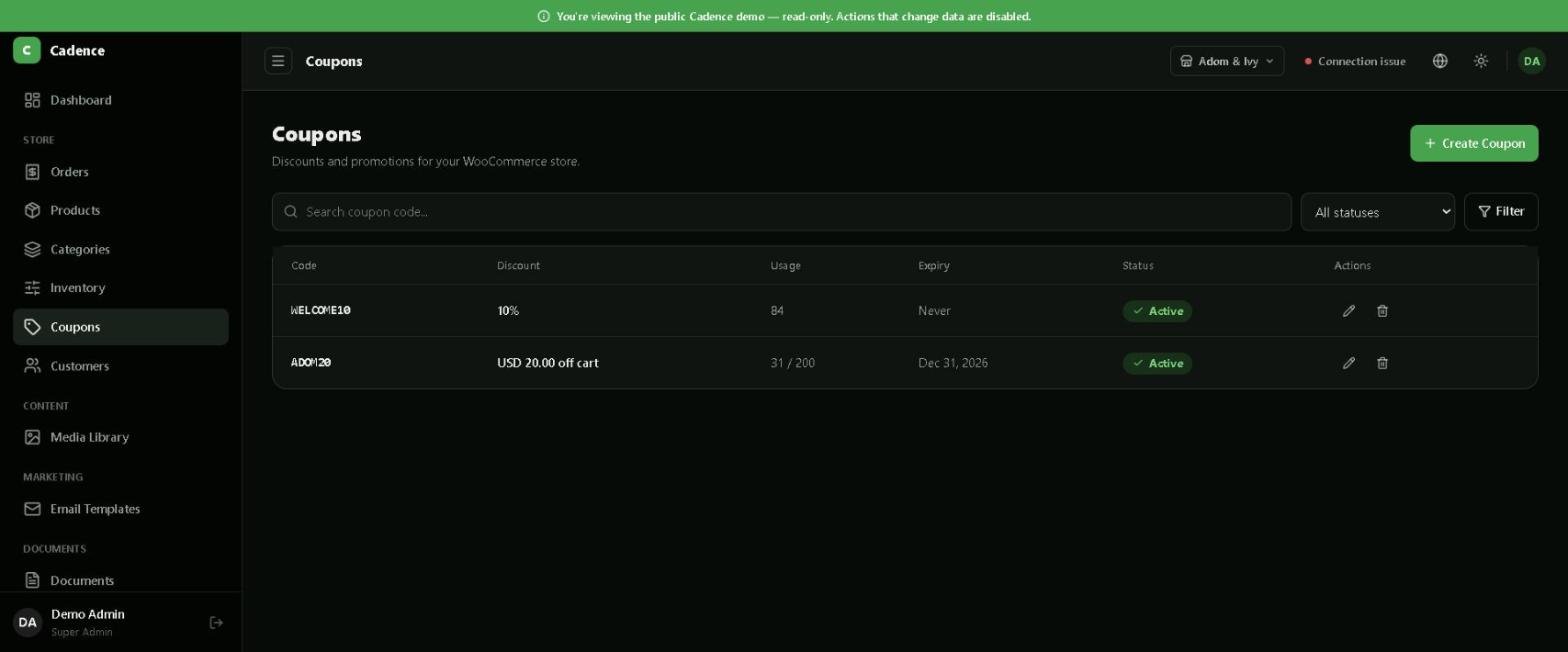
Create discount codes, set a percentage or fixed amount, an optional expiry date, and track how many times each code has been used.
Usage and expiry are visible without opening each coupon.
Usare Cadence
Categorie, magazzino e coupon
Tre strumenti mirati per tenere il catalogo organizzato e in movimento.
Categorie
Crea e organizza le categorie da Categorie nella barra laterale. Ognuna mostra quanti prodotti la usano, così puoi individuare a colpo d'occhio categorie vuote o troppo piene.
Categorie con conteggio prodotti in tempo reale.
Magazzino
La vista Magazzino mostra i livelli di stock dell'intero catalogo in un'unica tabella, con filtri rapidi per Scorte basse ed Esaurito: utile per un controllo settimanale veloce senza aprire ogni prodotto.
Filtra per Tutti i prodotti, Scorte basse o Esaurito.
Coupon
Crea codici sconto, imposta una percentuale o un importo fisso, una data di scadenza opzionale e monitora quante volte ogni codice è stato utilizzato.
Utilizzi e scadenza visibili senza aprire ogni coupon.
Cadence verwenden
Kategorien, Lager & Gutscheine
Drei gezielte Werkzeuge, um einen Katalog organisiert und in Bewegung zu halten.
Kategorien
Erstellen und organisieren Sie Kategorien über Kategorien in der Seitenleiste. Jede zeigt, wie viele Produkte sie verwenden — so erkennen Sie leere oder überfüllte Kategorien auf einen Blick.
Kategorien mit Live-Produktanzahl.
Lager
Die Lageransicht zeigt den Lagerbestand des gesamten Katalogs in einer Tabelle, mit Schnellfiltern für Niedriger Bestand und Nicht vorrätig — praktisch für eine schnelle wöchentliche Kontrolle, ohne jedes Produkt zu öffnen.
Filtern nach Alle Produkte, Niedriger Bestand oder Nicht vorrätig.
Gutscheine
Erstellen Sie Rabattcodes, legen Sie einen Prozentsatz oder Festbetrag sowie ein optionales Ablaufdatum fest und verfolgen Sie, wie oft jeder Code verwendet wurde.
Nutzung und Ablauf sichtbar, ohne jeden Gutschein zu öffnen.
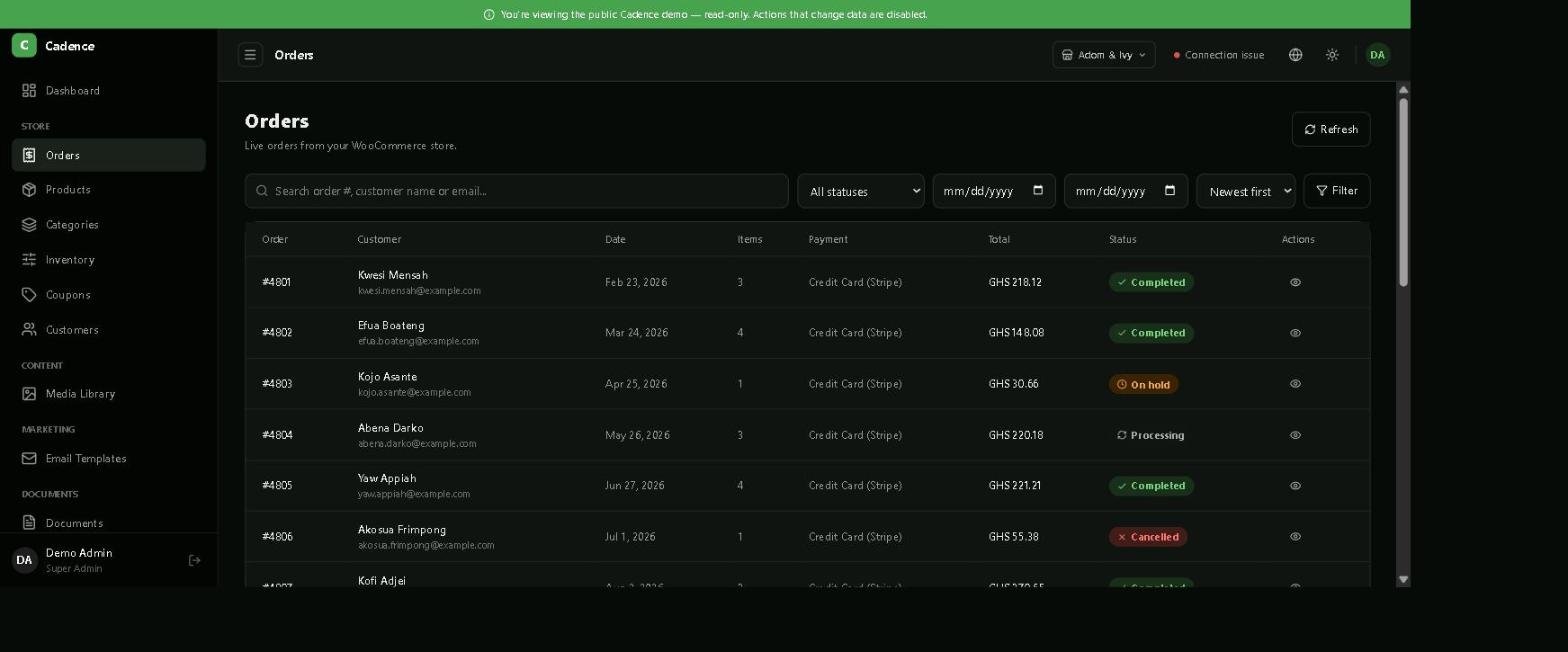
Every order placed on your WooCommerce store appears here in real time, with customer, items, payment method, total and status. Search by order number, customer name or email, and filter by status or date.
Orders sync live from WooCommerce — nothing is stored twice.
Customers
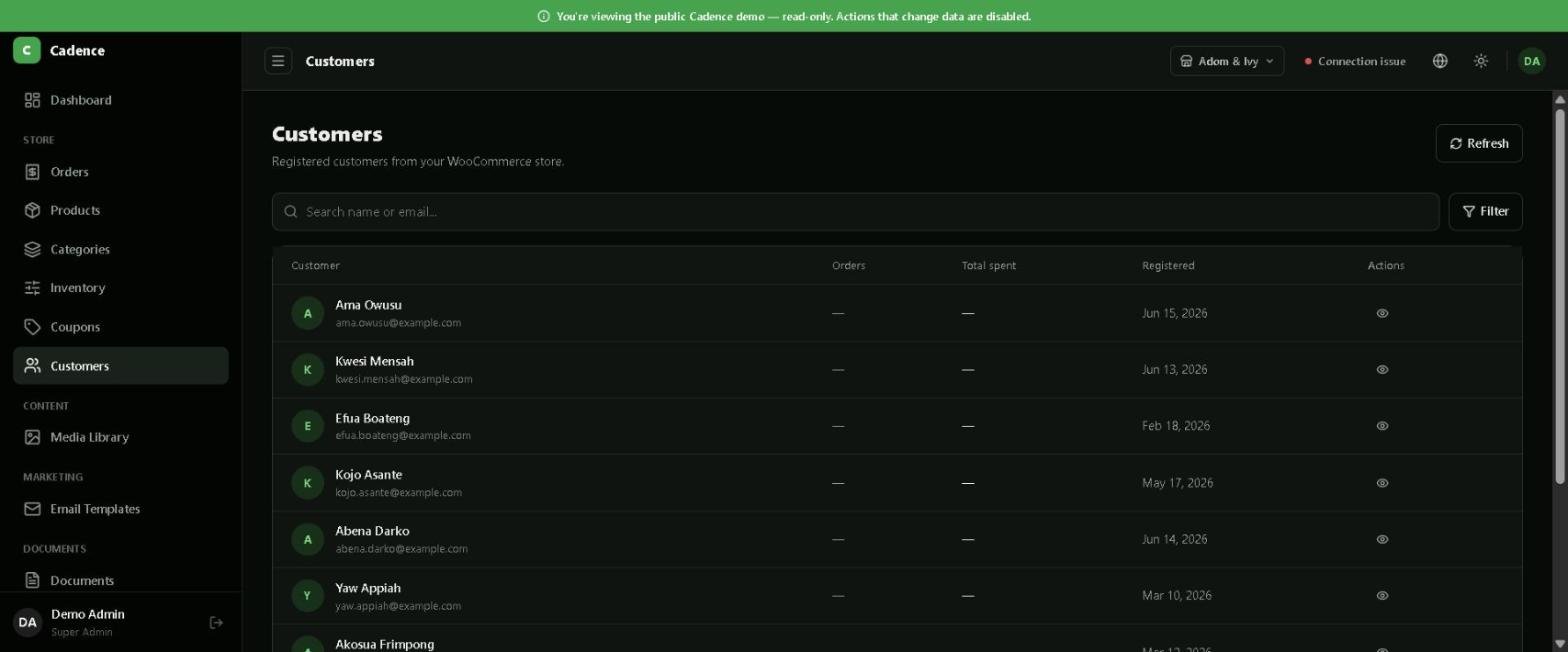
See everyone who has registered on your store, when they signed up, and (once they've ordered) their order count and total spend.
Customer records, kept in sync with your store.
Usare Cadence
Ordini e clienti
Ordini
Ogni ordine effettuato sul tuo negozio WooCommerce appare qui in tempo reale, con cliente, articoli, metodo di pagamento, totale e stato. Cerca per numero ordine, nome cliente o email, e filtra per stato o data.
Gli ordini si sincronizzano in tempo reale da WooCommerce: nulla viene salvato due volte.
Clienti
Vedi tutti coloro che si sono registrati sul tuo negozio, quando si sono iscritti e, una volta effettuato un ordine, il numero di ordini e la spesa totale.
Anagrafica clienti, sincronizzata con il tuo negozio.
Cadence verwenden
Bestellungen & Kunden
Bestellungen
Jede Bestellung Ihres WooCommerce-Shops erscheint hier in Echtzeit, mit Kunde, Artikeln, Zahlungsart, Summe und Status. Suchen Sie nach Bestellnummer, Kundenname oder E-Mail und filtern Sie nach Status oder Datum.
Bestellungen synchronisieren live aus WooCommerce — nichts wird doppelt gespeichert.
Kunden
Sehen Sie alle registrierten Kunden Ihres Shops, deren Anmeldedatum und — sobald sie bestellt haben — die Anzahl ihrer Bestellungen und Gesamtausgaben.
A single place to browse, search and upload the images used across your WooCommerce store, once your WordPress connection is in place (see Connecting your store).
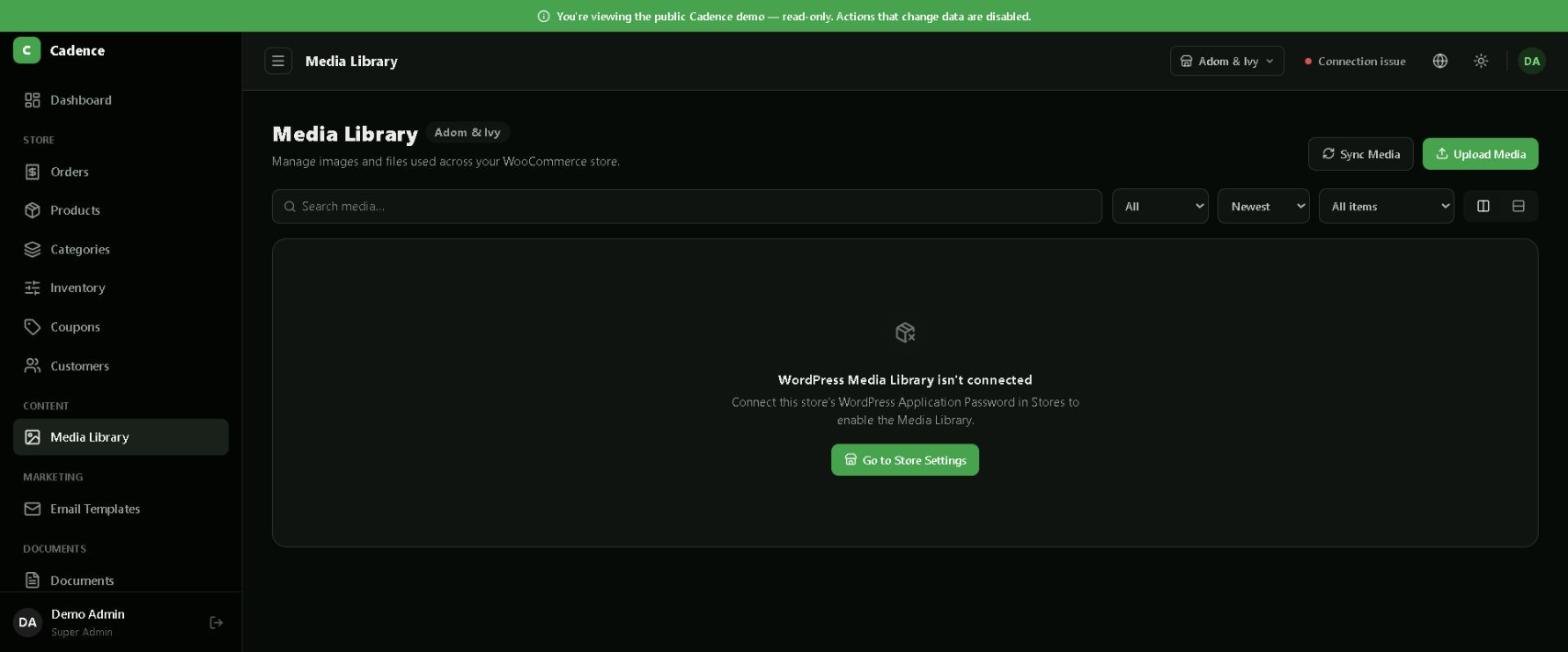
Until a WordPress Application Password is added, Cadence tells you exactly what's missing instead of showing an empty screen.
Once connected, use Sync Media to pull in anything uploaded directly in WordPress, or Upload Media to add new files without leaving Cadence.
Usare Cadence
Libreria media
Un unico posto per sfogliare, cercare e caricare le immagini usate nel tuo negozio WooCommerce, una volta collegato WordPress (vedi Collegare il tuo negozio).
Finché non viene aggiunta una Application Password di WordPress, Cadence indica esattamente cosa manca invece di mostrare una schermata vuota.
Una volta collegata, usa Sincronizza media per importare tutto ciò che è stato caricato direttamente in WordPress, oppure Carica media per aggiungere nuovi file senza uscire da Cadence.
Cadence verwenden
Medienbibliothek
Ein zentraler Ort zum Durchsuchen und Hochladen der Bilder Ihres WooCommerce-Shops, sobald Ihre WordPress-Verbindung eingerichtet ist (siehe Shop verbinden).
Solange kein WordPress-Anwendungspasswort hinterlegt ist, zeigt Cadence genau, was fehlt, statt einen leeren Bildschirm anzuzeigen.
Nach der Verbindung nutzen Sie Medien synchronisieren, um direkt in WordPress hochgeladene Dateien zu übernehmen, oder Medien hochladen, um neue Dateien hinzuzufügen, ohne Cadence zu verlassen.
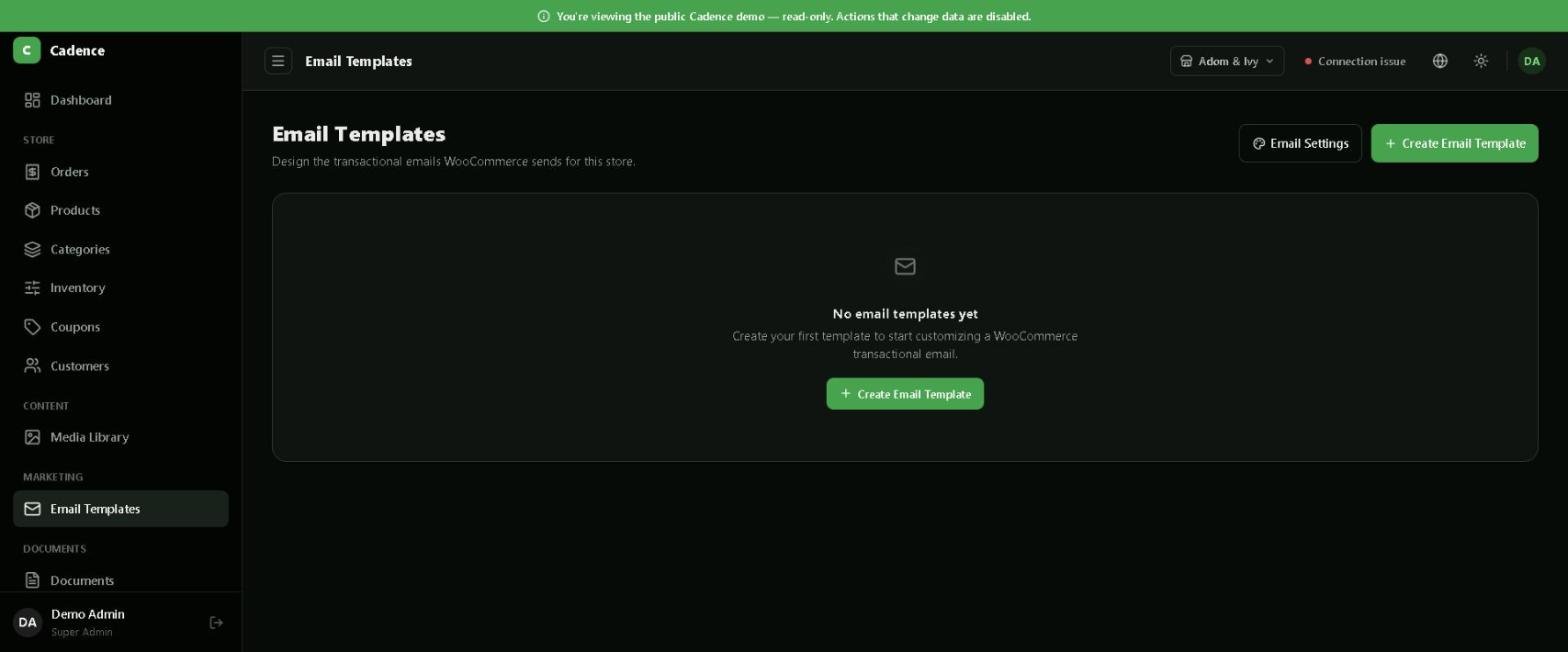
Design the transactional emails WooCommerce sends — order confirmations, shipping updates, refunds — without editing PHP or theme files.
Click Create Email Template to design your first one, or adjust delivery in Email Settings.
Templates you create here replace WooCommerce's default emails for that store — your customers see your own wording and branding instead of the generic WooCommerce default.
Usare Cadence
Modelli email
Progetta le email transazionali inviate da WooCommerce — conferme d'ordine, aggiornamenti di spedizione, rimborsi — senza modificare file PHP o del tema.
Clicca su Crea modello email per progettarne uno nuovo, oppure regola l'invio in Impostazioni email.
I modelli creati qui sostituiscono le email predefinite di WooCommerce per quel negozio: i tuoi clienti vedranno il tuo testo e il tuo branding invece del modello generico di WooCommerce.
Cadence verwenden
E-Mail-Vorlagen
Gestalten Sie die von WooCommerce versendeten Transaktions-E-Mails — Bestellbestätigungen, Versandupdates, Rückerstattungen — ohne PHP- oder Theme-Dateien zu bearbeiten.
Klicken Sie auf E-Mail-Vorlage erstellen, um Ihre erste zu gestalten, oder passen Sie den Versand in den E-Mail-Einstellungen an.
Hier erstellte Vorlagen ersetzen die Standard-E-Mails von WooCommerce für diesen Shop — Ihre Kunden sehen Ihre eigenen Texte und Ihr Branding statt der generischen WooCommerce-Vorlage.
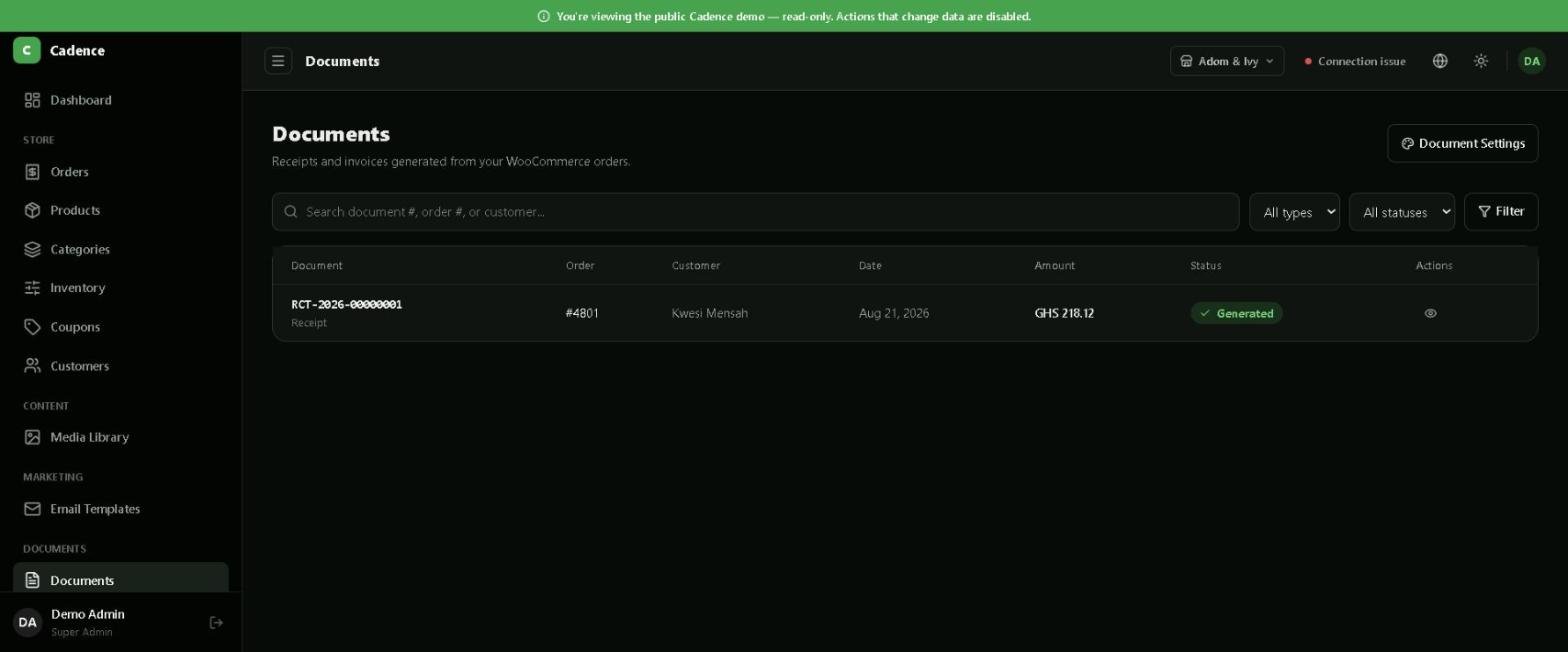
Cadence can generate a PDF receipt for any order, with a public link you can send straight to a customer — no login required on their end.
Every generated receipt is listed here, linked back to its order.
Open Document Settings to adjust what appears on generated receipts, such as your business details.
Usare Cadence
Documenti e ricevute
Cadence può generare una ricevuta PDF per qualsiasi ordine, con un link pubblico da inviare direttamente al cliente, senza che debba effettuare l'accesso.
Ogni ricevuta generata è elencata qui, collegata al suo ordine.
Apri Impostazioni documenti per regolare cosa appare sulle ricevute generate, come i dati della tua attività.
Cadence verwenden
Dokumente & Belege
Cadence kann für jede Bestellung eine PDF-Quittung erstellen, mit einem öffentlichen Link, den Sie direkt an den Kunden senden können — ohne dass dieser sich anmelden muss.
Jede erstellte Quittung wird hier aufgeführt, verknüpft mit ihrer Bestellung.
Öffnen Sie Dokumenteneinstellungen, um festzulegen, was auf erstellten Quittungen erscheint, etwa Ihre Firmendaten.
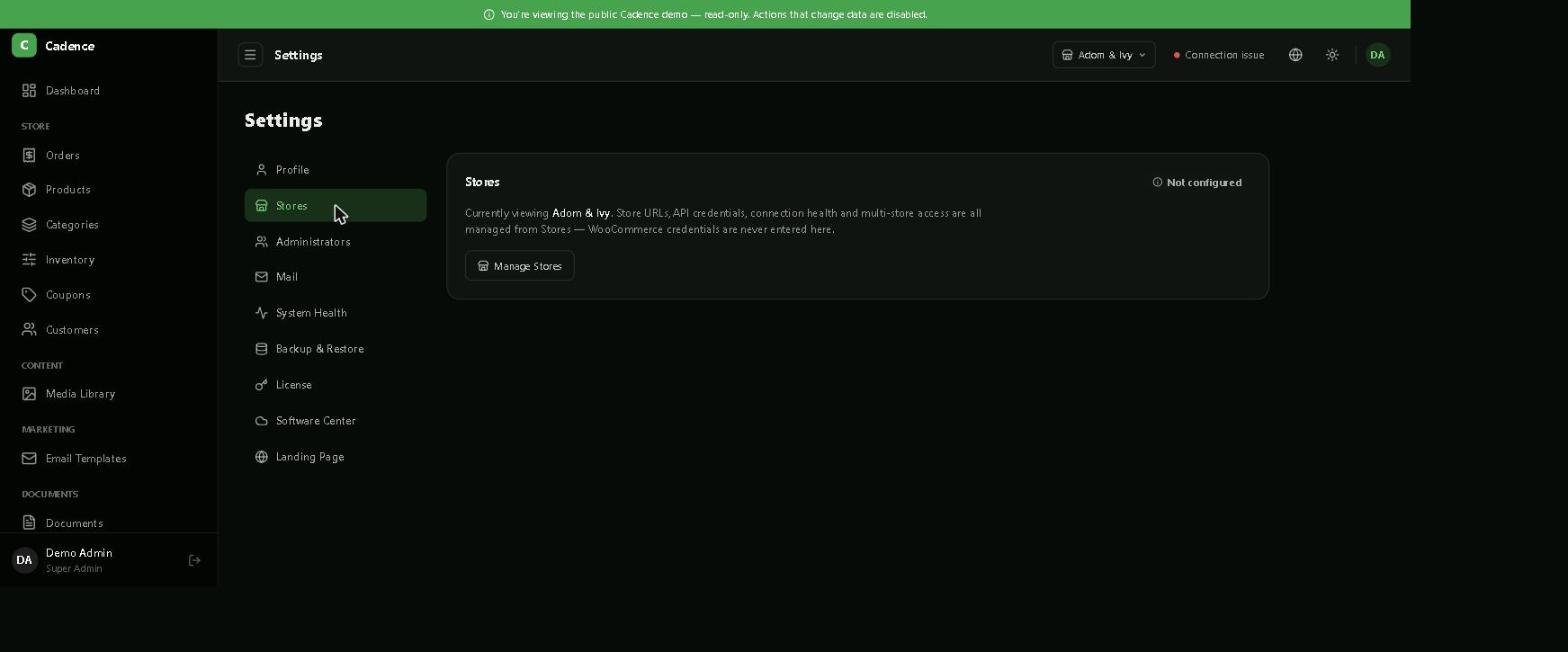
Add as many WooCommerce stores as you need under Settings → Stores (see Connecting your store for the setup steps). Each store's products, orders and customers stay completely separate — nothing crosses over between stores, even though you manage them from one login.
Admin users & roles
Invite teammates from Settings → Administrators. Each administrator gets:
A role that controls what they can do.
Store access — all stores, or only specific ones.
An active/inactive status you can toggle instantly if someone leaves the team.
Super Admin
The account created during installation is a Super Admin, with full access to every store, setting and administrator. Give this role sparingly.
Amministrazione
Negozi e amministratori
Più negozi
Aggiungi tutti i negozi WooCommerce di cui hai bisogno da Impostazioni → Negozi (vedi Collegare il tuo negozio per i passaggi). Prodotti, ordini e clienti di ogni negozio restano completamente separati: nulla si mescola tra negozi, anche se li gestisci da un unico accesso.
Amministratori e ruoli
Invita i collaboratori da Impostazioni → Amministratori. Ogni amministratore ha:
Un ruolo che controlla cosa può fare.
L'accesso ai negozi — tutti i negozi, oppure solo alcuni.
Uno stato attivo/inattivo che puoi disattivare all'istante se qualcuno lascia il team.
Super Admin
L'account creato durante l'installazione è un Super Admin, con accesso completo a ogni negozio, impostazione e amministratore. Assegna questo ruolo con parsimonia.
Verwaltung
Shops & Administratoren
Mehrere Shops
Fügen Sie so viele WooCommerce-Shops wie nötig unter Einstellungen → Shops hinzu (Schritte siehe Shop verbinden). Produkte, Bestellungen und Kunden jedes Shops bleiben vollständig getrennt — nichts vermischt sich zwischen Shops, auch wenn Sie alle über ein Login verwalten.
Administratoren & Rollen
Laden Sie Teammitglieder unter Einstellungen → Administratoren ein. Jeder Administrator erhält:
Eine Rolle, die festlegt, was er tun darf.
Shop-Zugriff — alle Shops oder nur bestimmte.
Einen Aktiv/Inaktiv-Status, den Sie sofort umschalten können, wenn jemand das Team verlässt.
Super-Admin
Das während der Installation erstellte Konto ist ein Super-Admin mit vollem Zugriff auf jeden Shop, jede Einstellung und jeden Administrator. Vergeben Sie diese Rolle sparsam.
Everything under Settings that isn't specific to licensing, updates or backups lives here.
Profile
Update your display name or change your own password from Settings → Profile.
Your account details and password, in one place.
Outgoing mail
Cadence sends login codes and administrator invitations by email. Add your SMTP details under Settings → Mail so these actually deliver — without one configured, Cadence writes emails to a log instead of sending them.
Where to get SMTP details
Most email providers (Gmail, Zoho, Microsoft 365, your hosting provider) publish their SMTP host, port and encryption settings in their own help pages — search "[your provider] SMTP settings".
System health
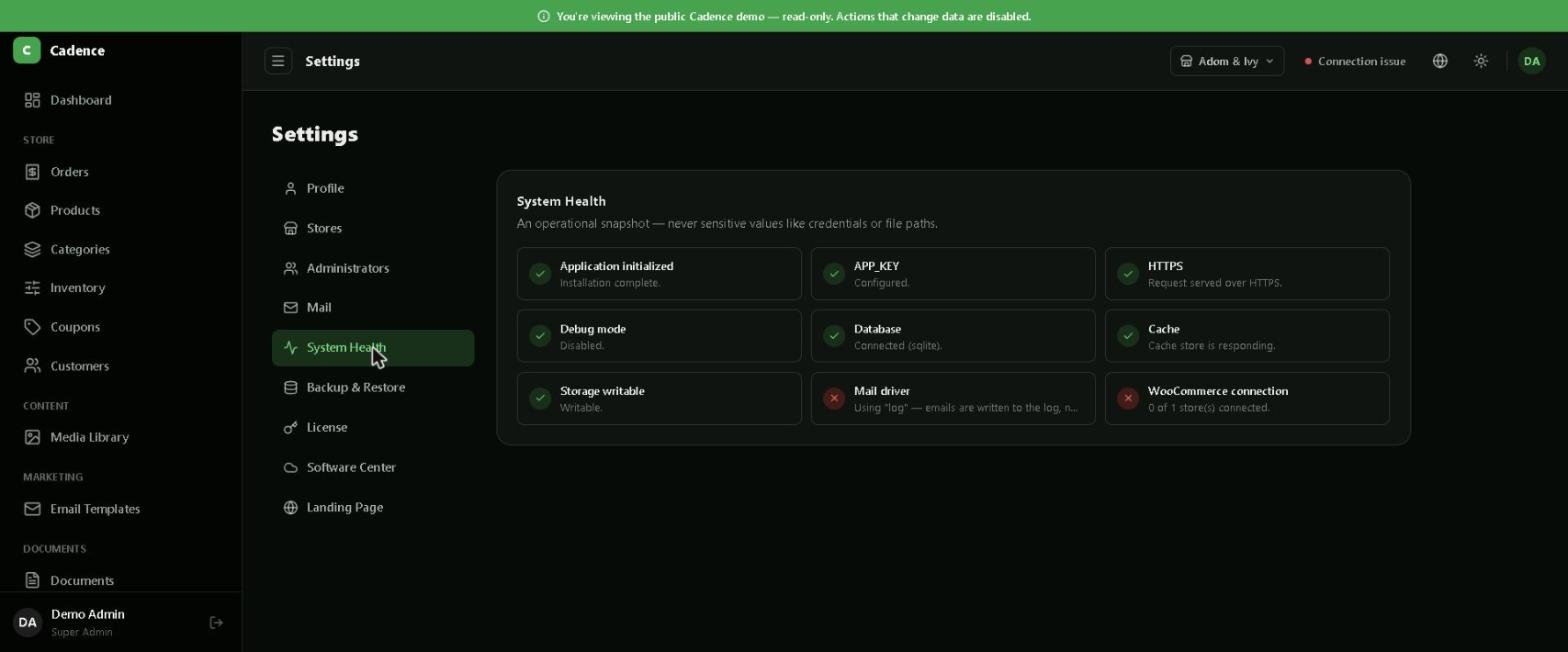
A quick, plain-language snapshot of whether the essentials are working — no sensitive values like credentials or file paths are ever shown here.
If something shows a red mark here, that's the first place to look when troubleshooting.
Amministrazione
Impostazioni generali
Tutto ciò che si trova in Impostazioni e non riguarda licenza, aggiornamenti o backup è raccolto qui.
Profilo
Aggiorna il tuo nome visualizzato o cambia la password da Impostazioni → Profilo.
I dettagli del tuo account e la password, in un unico posto.
Posta in uscita
Cadence invia via email i codici di accesso e gli inviti per gli amministratori. Aggiungi i dati SMTP in Impostazioni → Posta perché vengano effettivamente recapitati: senza configurazione, Cadence scrive le email in un log invece di inviarle.
Dove trovare i dati SMTP
La maggior parte dei provider email (Gmail, Zoho, Microsoft 365, il tuo hosting) pubblica host SMTP, porta e crittografia nelle proprie pagine di aiuto: cerca "impostazioni SMTP [tuo provider]".
Stato del sistema
Una fotografia rapida e chiara di ciò che funziona: qui non vengono mai mostrati valori sensibili come credenziali o percorsi di file.
Se qui compare un segno rosso, è il primo posto da controllare quando qualcosa non funziona.
Verwaltung
Allgemeine Einstellungen
Alles unter Einstellungen, das nicht speziell Lizenzierung, Updates oder Backups betrifft, finden Sie hier.
Profil
Aktualisieren Sie Ihren Anzeigenamen oder ändern Sie Ihr Passwort unter Einstellungen → Profil.
Ihre Kontodaten und Ihr Passwort an einem Ort.
Ausgehende E-Mails
Cadence versendet Anmeldecodes und Administrator-Einladungen per E-Mail. Tragen Sie Ihre SMTP-Daten unter Einstellungen → Mail ein, damit diese wirklich zugestellt werden — ohne Konfiguration schreibt Cadence E-Mails nur in ein Protokoll, statt sie zu senden.
Woher die SMTP-Daten kommen
Die meisten E-Mail-Anbieter (Gmail, Zoho, Microsoft 365, Ihr Hoster) veröffentlichen SMTP-Host, Port und Verschlüsselung in ihrer eigenen Hilfe — suchen Sie nach „[Ihr Anbieter] SMTP Einstellungen".
Systemzustand
Eine schnelle, verständliche Übersicht, ob die Grundlagen funktionieren — sensible Werte wie Zugangsdaten oder Dateipfade werden hier nie angezeigt.
Zeigt sich hier ein rotes Zeichen, ist das die erste Anlaufstelle bei der Fehlersuche.
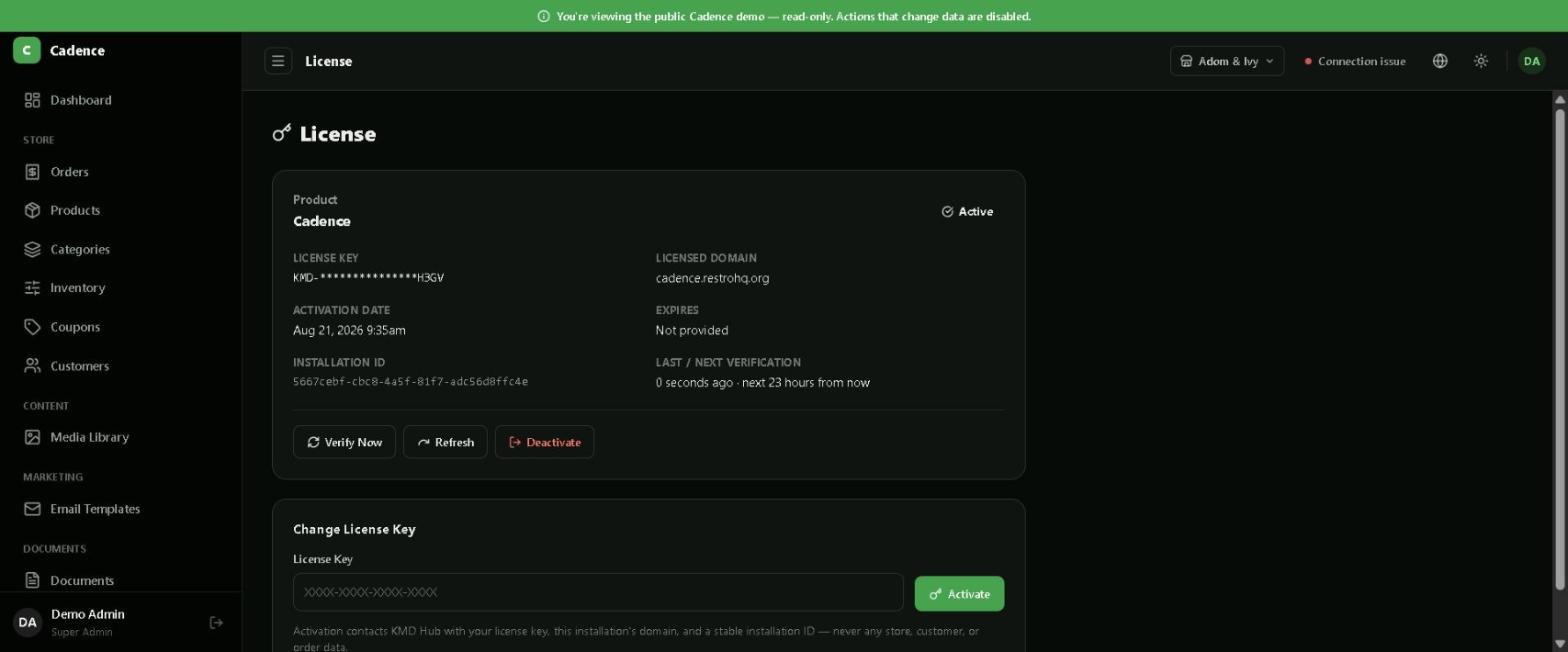
Cadence is licensed per domain through KMD Hub. Activation only needs your license key — nothing else about your store is shared.
Go to Settings → License.
Enter your license key under Change License Key and click Activate.
Cadence contacts KMD Hub with the key, your domain, and a stable installation ID, and shows the result immediately.
Everything about your license status, in one screen.
License states
Status
Meaning
Active
Verified and valid — everything works normally.
Not Activated
No license key has been entered yet.
Expired / Suspended
Contact support to renew or resolve.
Connection Error
KMD Hub couldn't be reached. A previously verified license keeps working using a safe cached result — Cadence never locks you out over a temporary network issue.
Use Verify Now to re-check immediately, or Deactivate to free up the license before moving it to another domain.
Amministrazione
Attivazione licenza
Cadence è concesso in licenza per dominio tramite KMD Hub. L'attivazione richiede solo la chiave di licenza: nessun altro dato del tuo negozio viene condiviso.
Vai su Impostazioni → Licenza.
Inserisci la chiave di licenza in Cambia chiave di licenza e clicca su Attiva.
Cadence contatta KMD Hub con la chiave, il tuo dominio e un ID di installazione stabile, mostrando subito il risultato.
Tutto sullo stato della tua licenza, in un'unica schermata.
Stati della licenza
Stato
Significato
Attiva
Verificata e valida: tutto funziona normalmente.
Non attivata
Non è ancora stata inserita alcuna chiave di licenza.
Scaduta / Sospesa
Contatta l'assistenza per rinnovare o risolvere.
Errore di connessione
Impossibile raggiungere KMD Hub. Una licenza già verificata continua a funzionare usando un risultato salvato in sicurezza: Cadence non ti blocca mai per un problema di rete temporaneo.
Usa Verifica ora per ricontrollare subito, oppure Disattiva per liberare la licenza prima di spostarla su un altro dominio.
Verwaltung
Lizenzaktivierung
Cadence wird pro Domain über KMD Hub lizenziert. Für die Aktivierung wird nur Ihr Lizenzschlüssel benötigt — sonst werden keine Daten Ihres Shops geteilt.
Gehen Sie zu Einstellungen → Lizenz.
Geben Sie Ihren Lizenzschlüssel unter Lizenzschlüssel ändern ein und klicken Sie auf Aktivieren.
Cadence kontaktiert KMD Hub mit dem Schlüssel, Ihrer Domain und einer stabilen Installations-ID und zeigt das Ergebnis sofort an.
Alles zu Ihrem Lizenzstatus auf einen Blick.
Lizenzstatus
Status
Bedeutung
Aktiv
Überprüft und gültig — alles funktioniert normal.
Nicht aktiviert
Es wurde noch kein Lizenzschlüssel eingegeben.
Abgelaufen / Gesperrt
Wenden Sie sich an den Support, um zu verlängern oder zu klären.
Verbindungsfehler
KMD Hub war nicht erreichbar. Eine zuvor bestätigte Lizenz funktioniert über ein sicher zwischengespeichertes Ergebnis weiter — Cadence sperrt Sie nie wegen eines vorübergehenden Netzwerkproblems aus.
Nutzen Sie Jetzt überprüfen für eine sofortige erneute Prüfung, oder Deaktivieren, um die Lizenz vor einem Domainwechsel freizugeben.
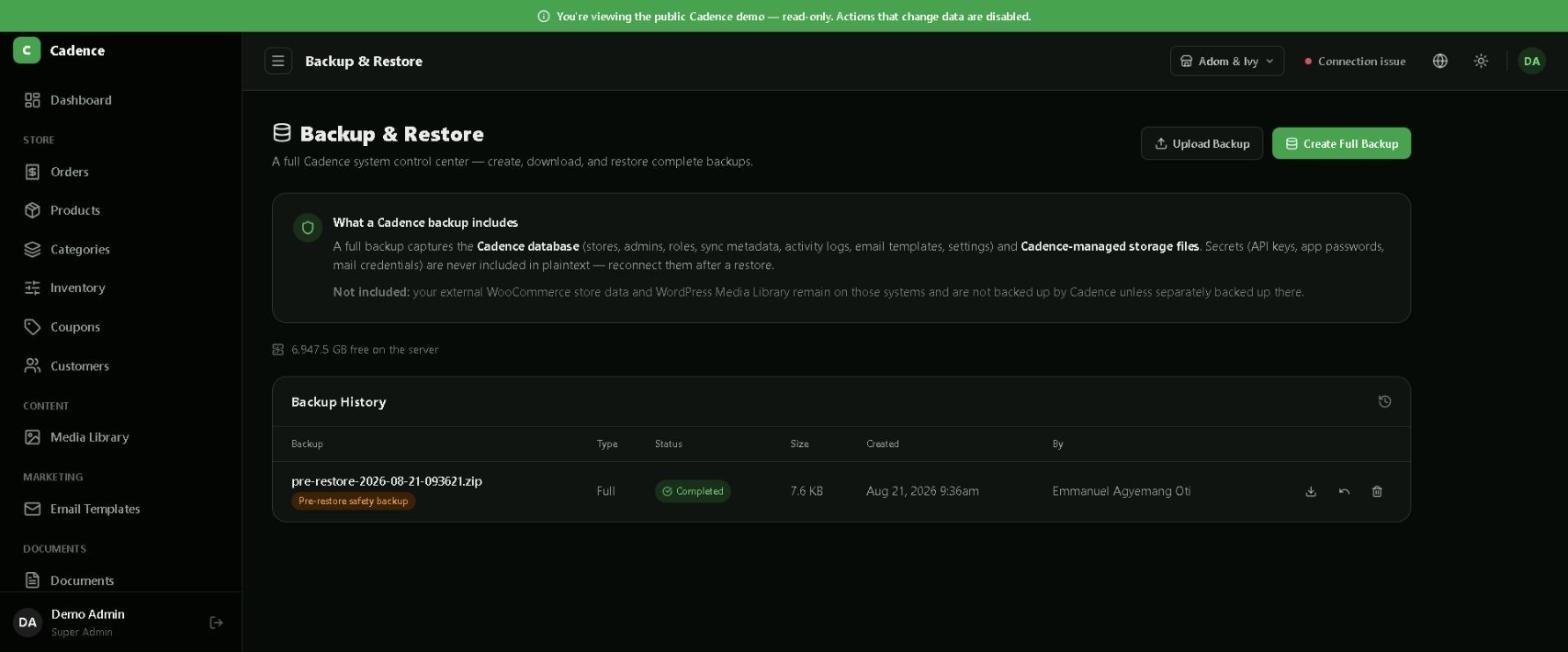
A full backup captures your Cadence database — stores, admins, roles, activity logs, email templates and settings — plus the files Cadence manages itself.
Click Create Full Backup anytime, or Upload Backup to restore from a file.
What's never included
Secrets like API keys, application passwords and mail credentials are never stored in a backup file in plain text. Your external WooCommerce store data and WordPress media stay on those systems — they have their own backups.
Restoring
Before any restore, Cadence automatically creates a safety backup of the current state first — so if a restore doesn't go the way you expected, you can always step back. Restoring requires Super Admin access and an explicit confirmation; it's not something that can happen by accident.
Amministrazione
Backup e ripristino
Un backup completo include il database di Cadence — negozi, amministratori, ruoli, log delle attività, modelli email e impostazioni — oltre ai file gestiti direttamente da Cadence.
Clicca su Crea backup completo in qualsiasi momento, oppure Carica backup per ripristinare da un file.
Cosa non è mai incluso
Segreti come chiavi API, application password e credenziali email non vengono mai salvati in chiaro in un file di backup. I dati del tuo negozio WooCommerce esterno e i media di WordPress restano su quei sistemi, che hanno i propri backup.
Ripristino
Prima di ogni ripristino, Cadence crea automaticamente un backup di sicurezza dello stato attuale: così, se il ripristino non va come previsto, puoi sempre tornare indietro. Il ripristino richiede accesso da Super Admin e una conferma esplicita: non può avvenire per errore.
Verwaltung
Sicherung & Wiederherstellung
Eine vollständige Sicherung erfasst Ihre Cadence-Datenbank — Shops, Administratoren, Rollen, Aktivitätsprotokolle, E-Mail-Vorlagen und Einstellungen — sowie die von Cadence selbst verwalteten Dateien.
Klicken Sie jederzeit auf Vollsicherung erstellen oder auf Backup hochladen, um von einer Datei wiederherzustellen.
Was nie enthalten ist
Geheimnisse wie API-Schlüssel, Anwendungspasswörter und Mail-Zugangsdaten werden nie im Klartext in einer Sicherungsdatei gespeichert. Ihre externen WooCommerce-Shopdaten und WordPress-Medien verbleiben auf diesen Systemen — sie haben ihre eigenen Backups.
Wiederherstellen
Vor jeder Wiederherstellung erstellt Cadence automatisch zuerst ein Sicherheitsbackup des aktuellen Zustands — falls eine Wiederherstellung nicht wie erwartet verläuft, können Sie jederzeit zurückgehen. Eine Wiederherstellung erfordert Super-Admin-Zugriff und eine ausdrückliche Bestätigung; sie kann nicht versehentlich geschehen.
A short summary of how Cadence protects your store and your data.
No shared passwords. Cadence connects to WooCommerce and WordPress with revocable API keys and application passwords — never your login password.
Role-based access. Every administrator only sees the stores and actions their role allows.
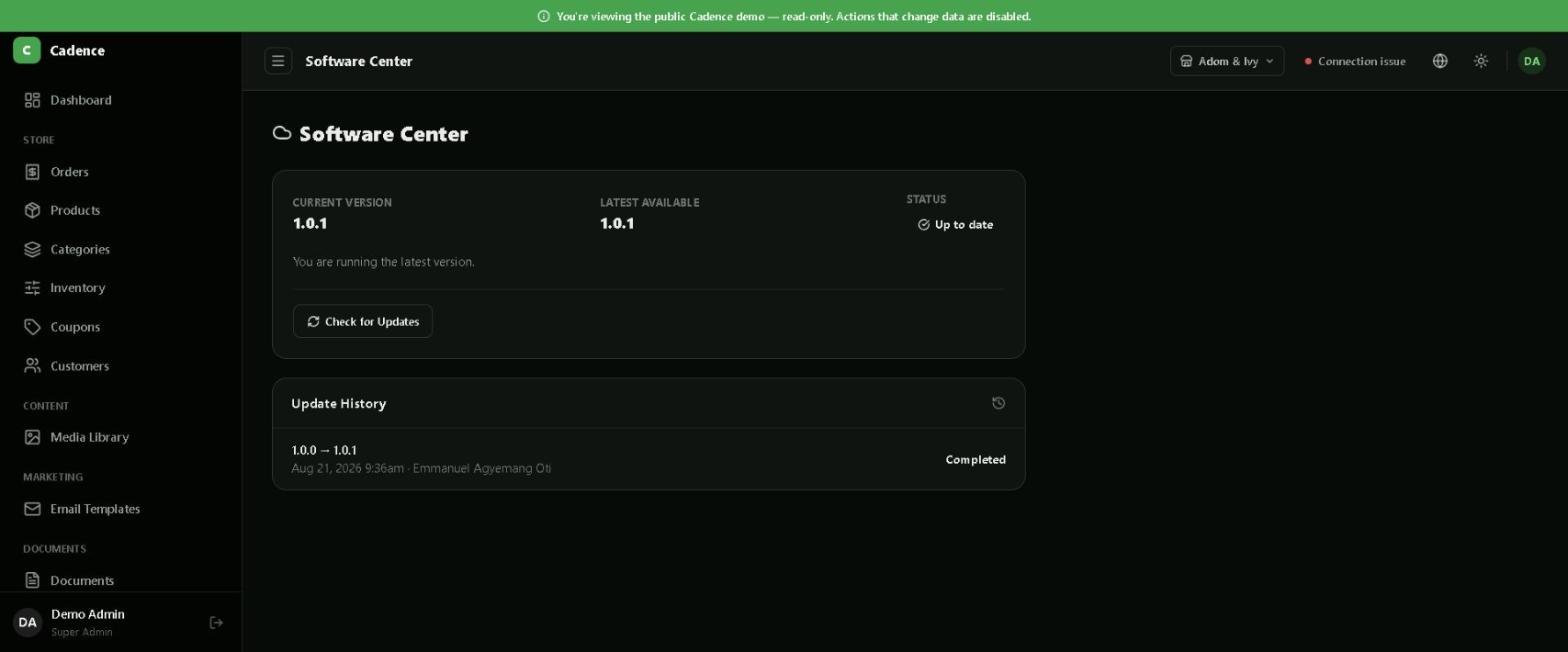
Safe updates. Every update is backed up first and automatically rolled back if anything fails — see Software Center.
Safe restores. Restoring requires Super Admin access, explicit confirmation, and always creates a safety backup first — see Backup & restore.
One-time installer. The installer locks itself after your Super Admin account is created; no development accounts ship with Cadence.
Secrets stay secret. API keys, application passwords and mail credentials are never shown in full or written to logs.
Found a security issue? See Contact support — please report it privately rather than publicly.
Assistenza
Panoramica sicurezza
Un breve riassunto di come Cadence protegge il tuo negozio e i tuoi dati.
Nessuna password condivisa. Cadence si collega a WooCommerce e WordPress con chiavi API e application password revocabili, mai con la tua password di accesso.
Accesso basato sui ruoli. Ogni amministratore vede solo i negozi e le azioni che il suo ruolo consente.
Aggiornamenti sicuri. Ogni aggiornamento viene prima sottoposto a backup e, in caso di errore, ripristinato automaticamente: vedi Software Center.
Ripristini sicuri. Il ripristino richiede accesso da Super Admin, una conferma esplicita e crea sempre prima un backup di sicurezza: vedi Backup e ripristino.
Installazione unica. L'installazione si blocca dopo la creazione dell'account Super Admin; Cadence non include account di sviluppo.
I segreti restano segreti. Chiavi API, application password e credenziali email non vengono mai mostrate per intero né scritte nei log.
Hai trovato un problema di sicurezza? Vedi Contatta l'assistenza: ti preghiamo di segnalarlo in privato e non pubblicamente.
Hilfe
Sicherheitsüberblick
Eine kurze Zusammenfassung, wie Cadence Ihren Shop und Ihre Daten schützt.
Keine geteilten Passwörter. Cadence verbindet sich mit WooCommerce und WordPress über widerrufbare API-Schlüssel und Anwendungspasswörter — niemals mit Ihrem Login-Passwort.
Rollenbasierter Zugriff. Jeder Administrator sieht nur die Shops und Aktionen, die seine Rolle erlaubt.
Sichere Updates. Jedes Update wird zuerst gesichert und bei einem Fehler automatisch zurückgerollt — siehe Software Center.
Sichere Wiederherstellung. Eine Wiederherstellung erfordert Super-Admin-Zugriff, eine ausdrückliche Bestätigung und erstellt immer zuerst ein Sicherheitsbackup — siehe Sicherung & Wiederherstellung.
Einmaliger Installer. Der Installer sperrt sich nach der Erstellung Ihres Super-Admin-Kontos selbst; Cadence wird ohne Entwicklerkonten ausgeliefert.
Geheimnisse bleiben geheim. API-Schlüssel, Anwendungspasswörter und Mail-Zugangsdaten werden nie vollständig angezeigt oder protokolliert.
Sicherheitsproblem gefunden? Siehe Support kontaktieren — bitte melden Sie es privat statt öffentlich.
Check Settings → System Health first — it will show a red mark next to WooCommerce connection if this is the issue. Then confirm the store URL is exactly right, the API key still has Read/Write permission, and the site is reachable over HTTPS.
I'm not receiving OTP or invitation emails
Add SMTP details under Settings → Mail — see General settings. Without them, Cadence writes emails to a log instead of sending them.
My license shows "Connection Error"
This means Cadence temporarily couldn't reach the licensing server — not that your license is invalid. A previously verified license keeps working from a safe cached result while Cadence keeps retrying automatically.
The installer won't let me back in
This is expected once setup is complete — it's a safety feature, not a bug. Sign in with the Super Admin account you created; if you've lost access to it, see Contact support.
An update failed
Cadence automatically rolls back to the pre-update backup if any step fails, so your store shouldn't be left in a broken state. Check Software Center → Update History for the result, and contact support if you need help.
Can I move my license to a new domain?
Yes — deactivate it on the old domain from Settings → License, then activate it on the new one.
Assistenza
Risoluzione problemi e FAQ
Il mio negozio non si collega
Controlla prima Impostazioni → Stato del sistema: mostrerà un segno rosso accanto a connessione WooCommerce se è questo il problema. Poi verifica che l'URL del negozio sia esatto, che la chiave API abbia ancora i permessi di Lettura/Scrittura e che il sito sia raggiungibile via HTTPS.
Non ricevo le email OTP o di invito
Aggiungi i dati SMTP in Impostazioni → Posta: vedi Impostazioni generali. Senza questi dati, Cadence scrive le email in un log invece di inviarle.
La mia licenza mostra "Errore di connessione"
Significa che Cadence non è temporaneamente riuscito a raggiungere il server di licenza, non che la licenza non è valida. Una licenza già verificata continua a funzionare usando un risultato salvato in sicurezza, mentre Cadence continua a riprovare automaticamente.
L'installazione non mi fa più entrare
Questo è normale una volta completata la configurazione: è una misura di sicurezza, non un errore. Accedi con l'account Super Admin creato in precedenza; se hai perso l'accesso, vedi Contatta l'assistenza.
Un aggiornamento è fallito
Cadence ripristina automaticamente il backup pre-aggiornamento se un passaggio fallisce, quindi il tuo negozio non dovrebbe restare in uno stato non funzionante. Controlla Software Center → Cronologia aggiornamenti per il risultato, e contatta l'assistenza se hai bisogno di aiuto.
Posso spostare la licenza su un nuovo dominio?
Sì: disattivala sul vecchio dominio da Impostazioni → Licenza, poi attivala su quello nuovo.
Hilfe
Fehlerbehebung & FAQ
Mein Shop verbindet sich nicht
Prüfen Sie zuerst Einstellungen → Systemzustand — dort erscheint ein rotes Zeichen bei der WooCommerce-Verbindung, falls dies das Problem ist. Prüfen Sie dann, ob die Shop-URL exakt stimmt, der API-Schlüssel noch Lese-/Schreibrechte hat und die Seite über HTTPS erreichbar ist.
Ich erhalte keine OTP- oder Einladungs-E-Mails
Tragen Sie SMTP-Daten unter Einstellungen → Mail ein — siehe Allgemeine Einstellungen. Ohne diese Angaben schreibt Cadence E-Mails nur in ein Protokoll, statt sie zu versenden.
Meine Lizenz zeigt „Verbindungsfehler"
Das bedeutet, dass Cadence den Lizenzserver vorübergehend nicht erreichen konnte — nicht, dass Ihre Lizenz ungültig ist. Eine zuvor bestätigte Lizenz funktioniert über ein sicher zwischengespeichertes Ergebnis weiter, während Cadence automatisch weiter versucht, die Verbindung herzustellen.
Der Installer lässt mich nicht mehr hinein
Das ist nach Abschluss der Einrichtung normal — eine Sicherheitsfunktion, kein Fehler. Melden Sie sich mit dem erstellten Super-Admin-Konto an; falls Sie den Zugriff verloren haben, siehe Support kontaktieren.
Ein Update ist fehlgeschlagen
Cadence stellt bei einem fehlgeschlagenen Schritt automatisch das Backup vor dem Update wieder her, sodass Ihr Shop nicht in einem defekten Zustand bleiben sollte. Prüfen Sie Software Center → Updateverlauf für das Ergebnis und kontaktieren Sie den Support bei Bedarf.
Kann ich meine Lizenz auf eine neue Domain übertragen?
Ja — deaktivieren Sie sie auf der alten Domain unter Einstellungen → Lizenz und aktivieren Sie sie dann auf der neuen.